Why HDDs still matter in a world of SSDs
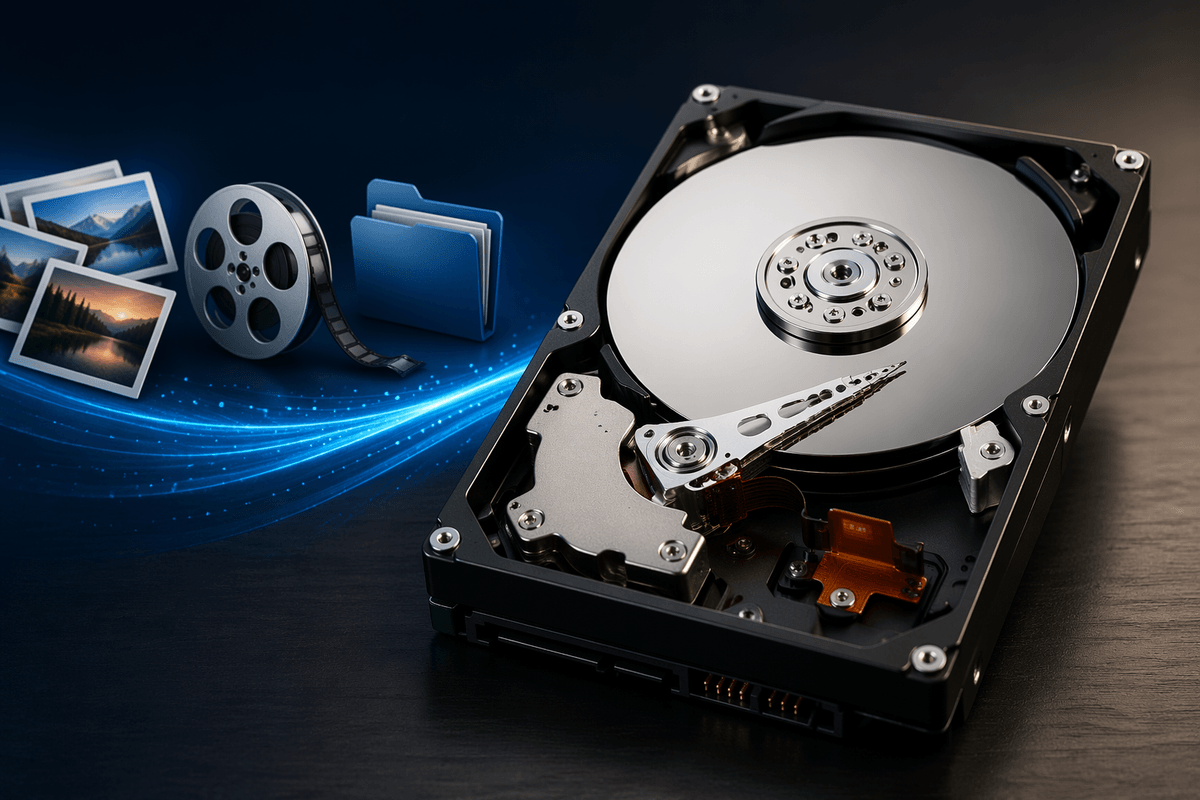
SSDs make a laptop feel instant, but HDDs still win on one boring, practical thing: cost per terabyte. When you need lots of space for photos, video, game libraries, or years of backups, a single large hard drive is often the simplest way to get there without spending SSD money. HDDs also fit well in always-on roles like a home NAS, where capacity matters more than snappy app launches.
The trade-off is that HDD speed is limited by moving parts, so random file access feels slower and drops are riskier. They’re best treated as “bulk storage” you plan around, not the drive that has to feel fast.
Inside the drive: platters, heads, and the moving parts
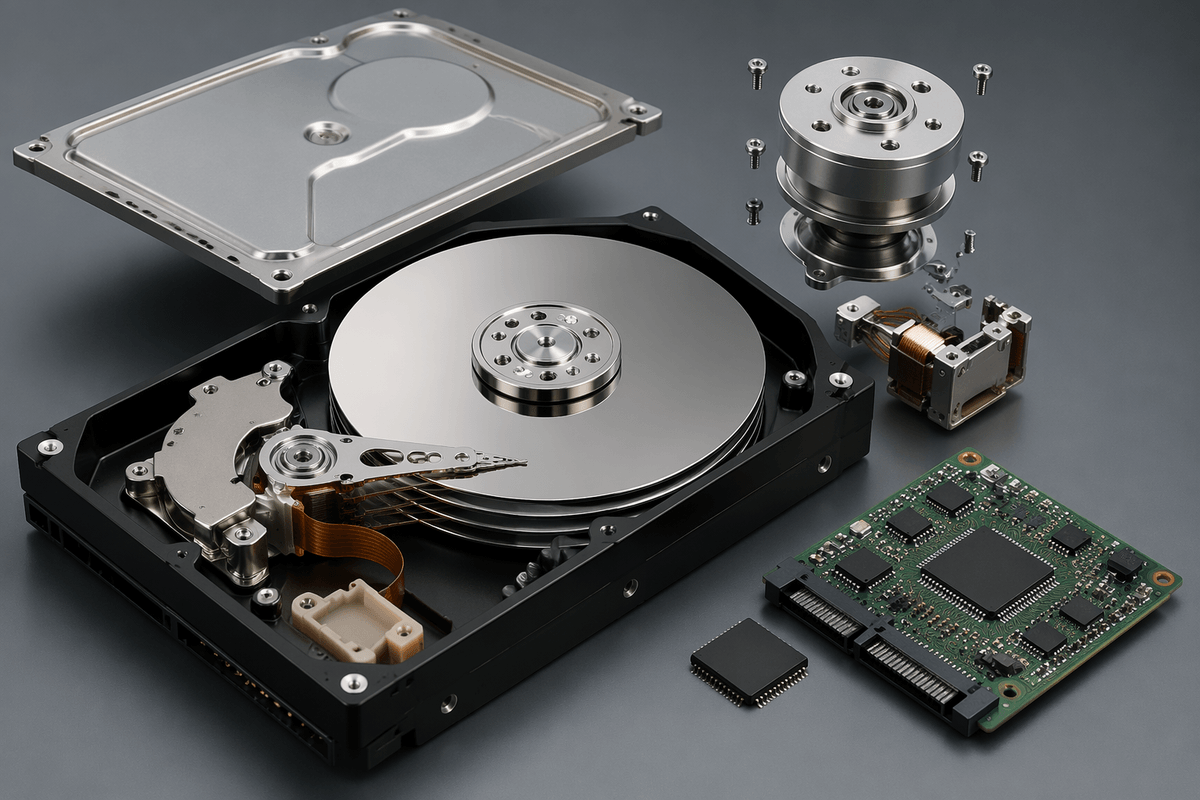
Picture a record player sealed inside a metal box. An HDD is a stack of circular platters coated with magnetic material, spinning at a fixed speed (often 5,400 or 7,200 RPM). Data lives on those platters as tiny magnetic changes, so the drive has to physically move to the right spot to read or write it.
That job belongs to the actuator arm, which swings the read/write heads across the platter surfaces. The heads “fly” a microscopic distance above the spinning disk on a cushion of air, which is why shocks and drops are such a big deal: if a head touches the platter, it can scrape data away. Around that core you’ll also find a motor, controller board, and a small cache (DRAM on many models) that buffers bursts of data. All of this mechanical motion is why HDDs have a characteristic hum and why seek noise often shows up under heavy file activity.
How data is actually written and found on a spinning disk
You’ve probably noticed an HDD is decent at copying one big movie file, but feels sluggish opening lots of small files. That’s because each platter is divided into tracks (rings) and sectors (slices). To write data, the head flips tiny magnetic regions as the platter spins underneath. To find it again, the drive uses a map in its firmware that translates a file request into physical locations, then the actuator moves the head to the right track while the platter rotation brings the right sector under it.
Two delays dominate: seek time (moving the head) and rotational latency (waiting for the platter to spin to the right spot). Caching helps smooth short bursts, but it can’t erase the “wait your turn” nature of random access. Shingled Magnetic Recording (SMR) can pack more data by overlapping tracks, but rewriting data may force the drive to reshuffle nearby tracks, which can slow sustained writes versus Conventional Magnetic Recording (CMR).
What makes one HDD faster than another in real use
You can buy two “7200 RPM” drives and still see very different results, because real speed is a mix of mechanics, density, and workload. RPM mainly affects rotational latency, so 7200 RPM usually feels snappier than 5400 RPM for lots of small reads, but it also tends to run warmer and louder. The other big factor is areal density: newer, higher-capacity platters can move more data per rotation, which boosts sequential throughput even at the same RPM. That’s why a modern 8TB drive can out-copy an older 2TB drive in straight-line transfers.
Cache helps when you hit repeated data or short bursts, but don’t treat “256MB cache” as a magic performance number. Interface labels can mislead too: SATA 6Gb/s is rarely the bottleneck for a single HDD. Recording method matters in long writes; SMR drives can slow sharply when their internal shingled zones fill, while CMR stays steadier for sustained copying, video editing scratch use, or NAS rebuilds. If you want a drive to feel “faster,” the simplest win is fewer random accesses: keep the OS and apps on an SSD, and use the HDD for large, mostly sequential files.
Reliability realities: failure modes, warning signs, and lifespan
Most HDD failures come down to the same theme: a mechanical system wearing down or getting knocked out of alignment. A sharp drop can cause a head crash, while years of heat and vibration can gradually weaken bearings, the spindle motor, or the actuator that positions the heads. Electronics fail too (the controller board can die), but the moving parts are why drives often get noisier before they quit. A drive that starts clicking, repeatedly spins up and down, takes much longer to open folders, or throws “delayed write failed” style errors is telling you it’s struggling. S.M.A.R.T. health data can help, especially rising reallocated or pending sector counts, but it’s not a guarantee: some drives die with little warning.
Lifespan is also workload-dependent. A lightly used desktop archive drive may last many years, while a busy NAS drive that runs 24/7 will rack up hours fast. Plan for failure as normal: keep backups, and treat any new noise or growing bad-sector counts as a prompt to copy data off immediately—even if the drive still “works.”
Choosing the right HDD: capacity, use-case, and trade-offs
The moment you shop for an HDD, the real question is what job you’re hiring it for. For cold storage and backups, prioritize capacity and predictable writes: a large CMR drive is usually the least surprising choice, and an external USB enclosure is fine if you only plug it in for scheduled backups. For a desktop “media and downloads” drive, 7200 RPM can make browsing folders and launching big games a bit less draggy, but it costs you more noise, more heat, and often higher power draw.
For a NAS, choose drives sold for NAS or enterprise use when you can. They’re designed for 24/7 vibration, longer duty cycles, and multi-drive error recovery behavior. SMR is the main “gotcha” here: it can work for light, mostly-read storage, but it can become painfully slow during sustained writes, RAID rebuilds, or large backup refreshes. Bigger isn’t automatically safer, either. One 20TB drive is convenient, but it concentrates risk, and replacing it takes longer. Two smaller drives can be easier to mirror and faster to restore, at the cost of more bays and more total power.
Using HDDs safely: setup habits that prevent painful losses
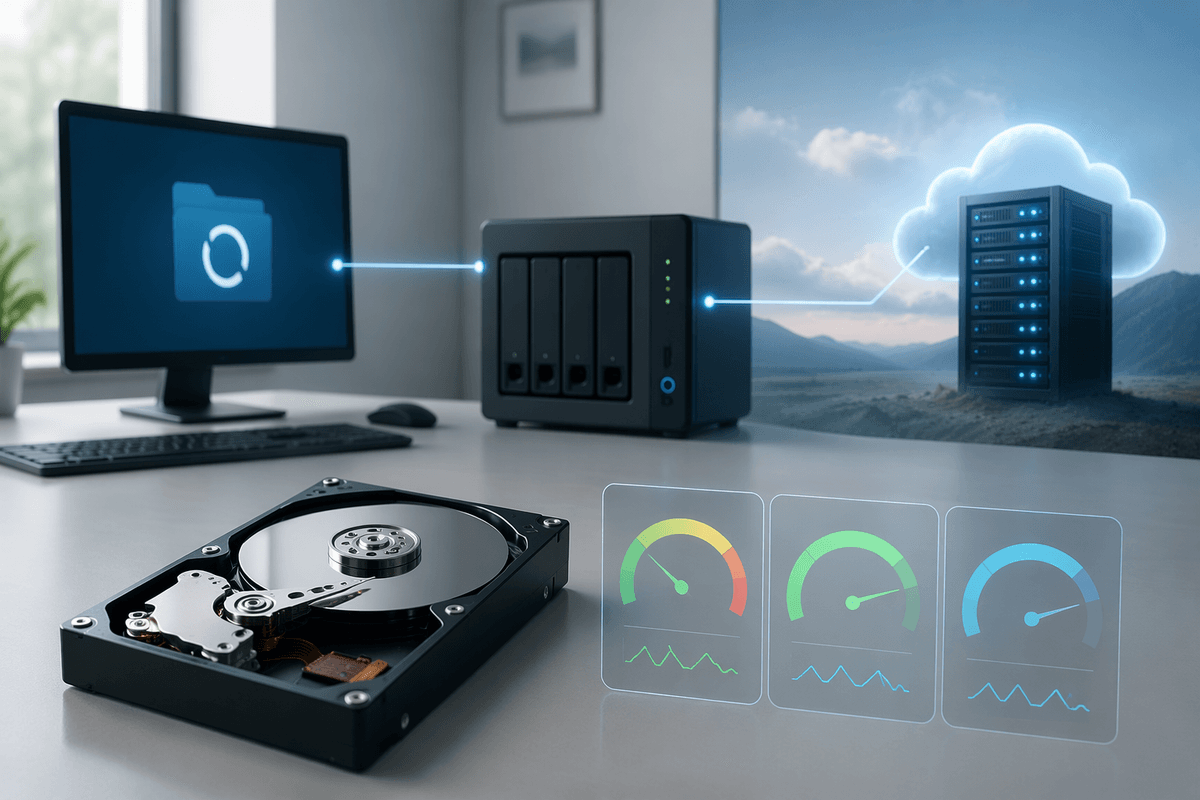
You’ll usually notice the risk with HDDs the moment you treat them like an SSD: leaving the case open, moving a PC while it’s running, or using a loose external drive on a desk. The safer pattern is boring: mount the drive firmly, keep airflow steady, and avoid knocks while it’s spinning. For externals, use a stable spot, a good cable, and don’t unplug during large writes; many “mystery” corruptions are really power or connection drops mid-transfer.
Set up health checks early, not after you hear clicking. Enable periodic S.M.A.R.T. monitoring, run an occasional extended test, and pay attention to growing reallocated/pending sectors. Then back it up like you expect it to fail: follow a 3-2-1 style approach (three copies, two kinds of storage, one offsite). The cost is time and extra storage, but it’s cheaper than recovery.
Putting it together: a practical checklist for HDD decisions
You’re usually deciding between “cheap space” and “fast access,” so start by naming the job: bulk media, backup, NAS, or scratch. For lots of rewriting or NAS/RAID use, favor CMR; treat SMR as “mostly read, occasional write,” because long write sessions can bog down. Choose 7200 RPM when you’ll browse and load from it often; choose 5400 RPM when quiet, cool, and low power matter more. Don’t overpay for cache numbers or SATA labels. Assume any single drive can die: plan a backup before you fill it, and verify S.M.A.R.T. and a full test while it’s still returnable.