Why Paramount+ ends up costing more than you expect
You sign up for Paramount+ thinking it’s one low monthly price, then a few weeks later the charges don’t match what you remember. The most common reason is you didn’t actually subscribe “directly”—you subscribed through Apple, Google Play, Amazon, Roku, or a cable bundle, and each of those can present the plan name, taxes, and billing cycle a little differently.
Add-ons also sneak in. Showtime/Paramount+ with Showtime, premium channels through Prime Video, or a discounted intro rate that later jumps to the regular price can make a renewal feel like a surprise. Annual plans can be even worse for sticker shock because the charge hits all at once, and it’s easy to miss in a busy month.
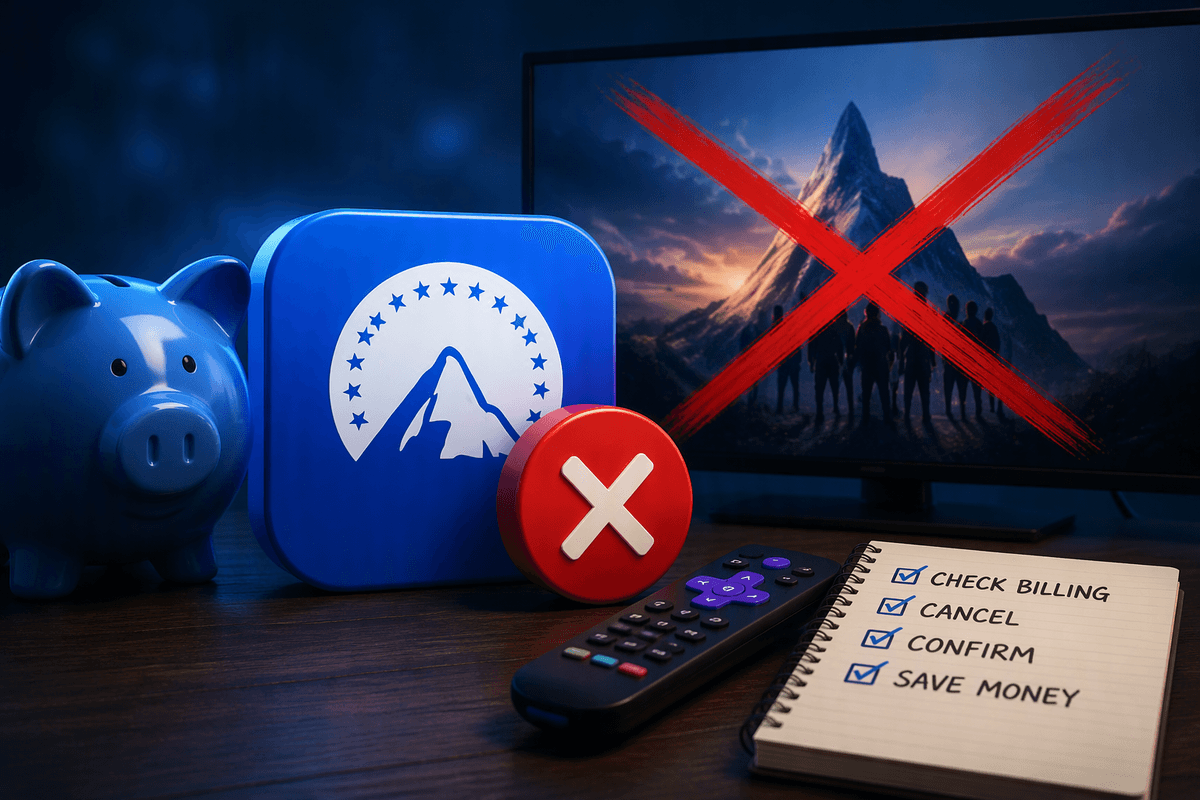
The practical constraint: you can’t reliably stop future charges until you cancel in the same place you were billed. That’s why the first “money-saving” step is identifying the billing owner, not hunting for a cancel button.
Before you cancel: check where you’re billed
The fastest way to avoid another renewal is to figure out who “owns” your subscription. If you cancel in the wrong place, you can still be billed—and you may waste time thinking it didn’t work.
Start with your last charge. In your bank or credit-card activity, look for labels like APPLE.COM/BILL, GOOGLE *Paramount, AMZN Digital/Prime Video Channels, or ROKU (the exact wording varies). If the descriptor looks like Apple/Google/Amazon/Roku, that store is your billing owner, even if you watch inside the Paramount+ app. If it shows Paramount+ (or CBS Interactive/Paramount) directly, you likely subscribed on the Paramount+ website. Cable bundles can appear under your cable company name and may list Paramount+ as an add-on.
Once you identify the billing owner, go there and check the subscription status and “next billing date.” Screenshot the confirmation screen after you cancel—stores sometimes bury the proof in email receipts.
Canceling on the Paramount+ website (fastest option)
If your bank charge shows Paramount+ (or CBS Interactive/Paramount) rather than Apple, Google, Amazon, Roku, or your cable company, you can usually cancel fastest on the Paramount+ website. On a computer or mobile browser, sign in at paramountplus.com, open your account settings, and look for a “Subscription” or “Manage subscription” area. Choose Cancel (or Turn off auto-renew), then follow the prompts until you see a final confirmation screen.
Two practical checks prevent “I canceled but got billed” problems. First, confirm you see an end date or “expires on” date that matches your current billing period, not a new renewal date. Second, watch for an email confirmation—then take a screenshot of the account page showing cancellation status in case the email never arrives. If you’re on an annual plan, the access usually continues to the end of the paid year, which can make it feel like nothing changed even though auto-renew is off.
Canceling through Apple, Google Play, Roku, or Amazon
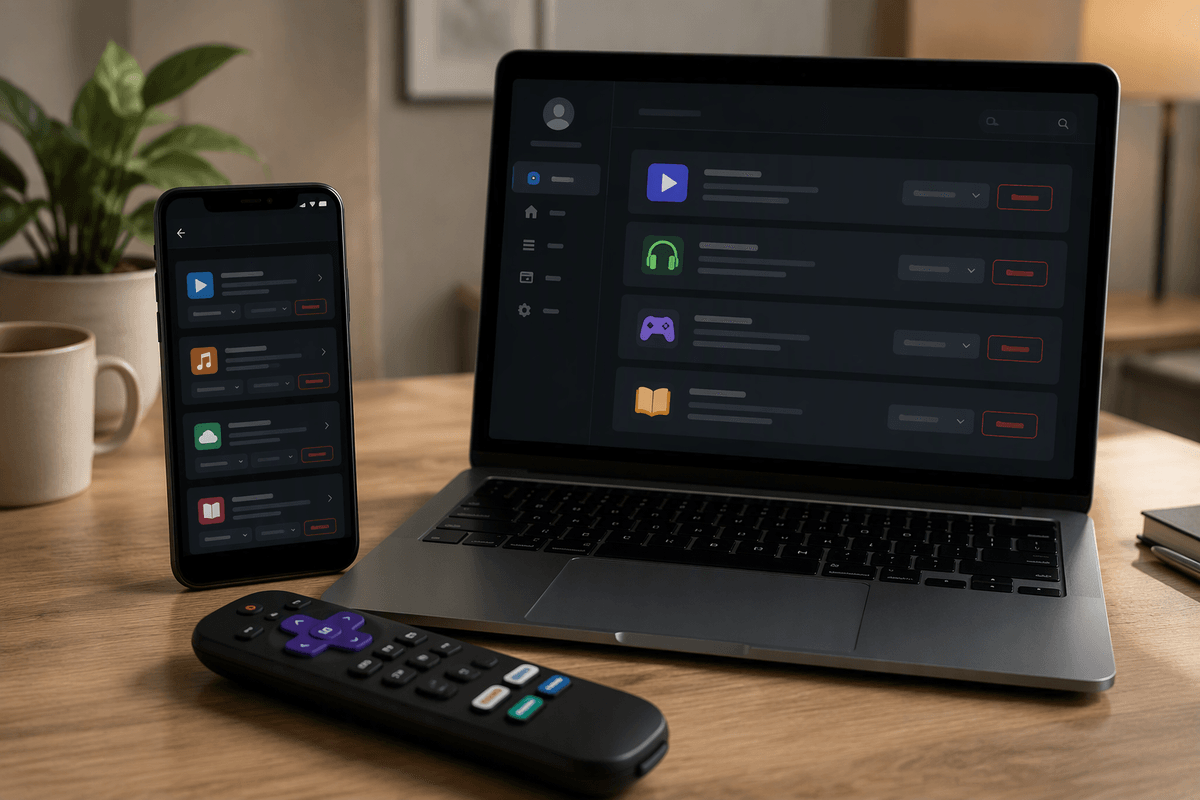
You’ll know you’re in “third-party” territory when the Paramount+ account page doesn’t offer a real cancel button, or it sends you back to the store. At that point, cancel where you pay: on iPhone/iPad go to Settings > your name > Subscriptions > Paramount+ and tap Cancel; on Android open Google Play > Payments & subscriptions > Subscriptions; on Roku go to my.roku.com > Manage your subscriptions (or highlight the channel on the device, press the star button, then Manage subscription); on Amazon it’s under Prime Video > Channels, where you remove Paramount+ from your Channels list.
After you cancel, don’t stop at the “canceled” message. Check the next billing date has disappeared or changed to an “ends on” date, and keep the email receipt/screenshot. A common snag is having multiple subscriptions (Paramount+ app plus Prime Video Channels), so search your Subscriptions list for more than one Paramount entry. Access usually continues until the current paid period ends, but downloads can be limited once the subscription expires.
What happens after you cancel: access, downloads, and profiles
You usually keep watching until the end of the billing period you already paid for, even after you turn off auto-renew. That’s why the key field to look for is an “ends on” or “expires” date—if you still see a “renews on” date, you haven’t actually stopped the renewal. If you cancel right before a renewal time, one practical headache is timing: some stores process changes quickly, but a late-night renewal can still slip through, so it’s worth checking again the next day for a clean status page.
When the subscription actually expires, the most noticeable changes are on-device. Downloads for offline viewing may stop playing, and you may be prompted to resubscribe to access saved episodes. Profiles and watch history commonly remain on the account for when you return, but they don’t protect you from losing access—only an active subscription does—so plan any last downloads or catch-up viewing before the end date.
Refunds, chargebacks, and stopping surprise renewals
The fastest “refund” move is preventing the next charge. After canceling, set a calendar reminder for two days before the listed end date, then re-open the same billing owner (Paramount+, Apple, Google Play, Amazon, Roku, or your cable account) and confirm there’s no “renews on” date. If you see a renewal date, you’re not done—toggle auto-renew off again and save a fresh screenshot.
Refunds are inconsistent and usually time-sensitive. If you were billed after you already canceled or you’re within a free trial you meant to stop, contact the billing owner’s support first—stores generally won’t refund charges they didn’t process. Keep it simple: provide the charge date, amount, and proof of cancellation. A chargeback can stop the money, but it can also trigger account locks and takes effort to document, so treat it as a last resort when support won’t fix a clearly incorrect charge.
If you still want the shows: cheaper ways to watch
You don’t have to keep a full-time subscription to catch the few Paramount+ shows you actually watch. Rotate: cancel now, keep access until your end date, then re-subscribe for one month when a season finishes so you can binge and cancel again the same day. If you’re mostly there for live sports or CBS, compare the cost of a basic antenna for locals or a live-TV bundle you already use—paying twice is common. Another option is sharing one plan within your household and trimming extra add-ons like Showtime. The trade-off is hassle: you’ll re-login, and promos aren’t always available when you return.