Canceling CBS All Access now: what it’s called today
If you’re looking for “CBS All Access,” you’re in the right place—its current name is Paramount+. That name change is why the cancel button often isn’t where you expect: your bank statement may still show an older label, while the app on your phone says Paramount+. The fastest way to avoid canceling in the wrong place is to match the name you see in the store or provider that bills you. If you subscribed inside the Paramount+ website, you’ll cancel there. If you subscribed through Apple, Google Play, Amazon, Roku, or a TV provider, the cancellation happens with them, not Paramount+.
Before you cancel: check where you were billed
The most common reason cancellations “don’t stick” is trying to cancel on Paramount+ when Apple, Google Play, Amazon, Roku, or a TV provider is actually in charge of billing. Start with the last place you saw a charge. On your bank or card statement, look for clues like APPLE.COM/BILL, GOOGLE*Paramount, AMAZON, ROKU, or your cable/satellite provider name. If it shows “Paramount+” with no store/provider marker, you likely subscribed directly on the web.
Then double-check inside the app you used to sign up. In Paramount+, look for an account or subscription page that lists a billing provider (it may say something like “Billed through Apple” rather than showing payment details). If you can’t find that, search your email for the original receipt—Apple and Google receipts are usually unmistakable. This takes a few minutes, but it saves you a full extra billing cycle.
Cancel on the web: if you subscribed directly
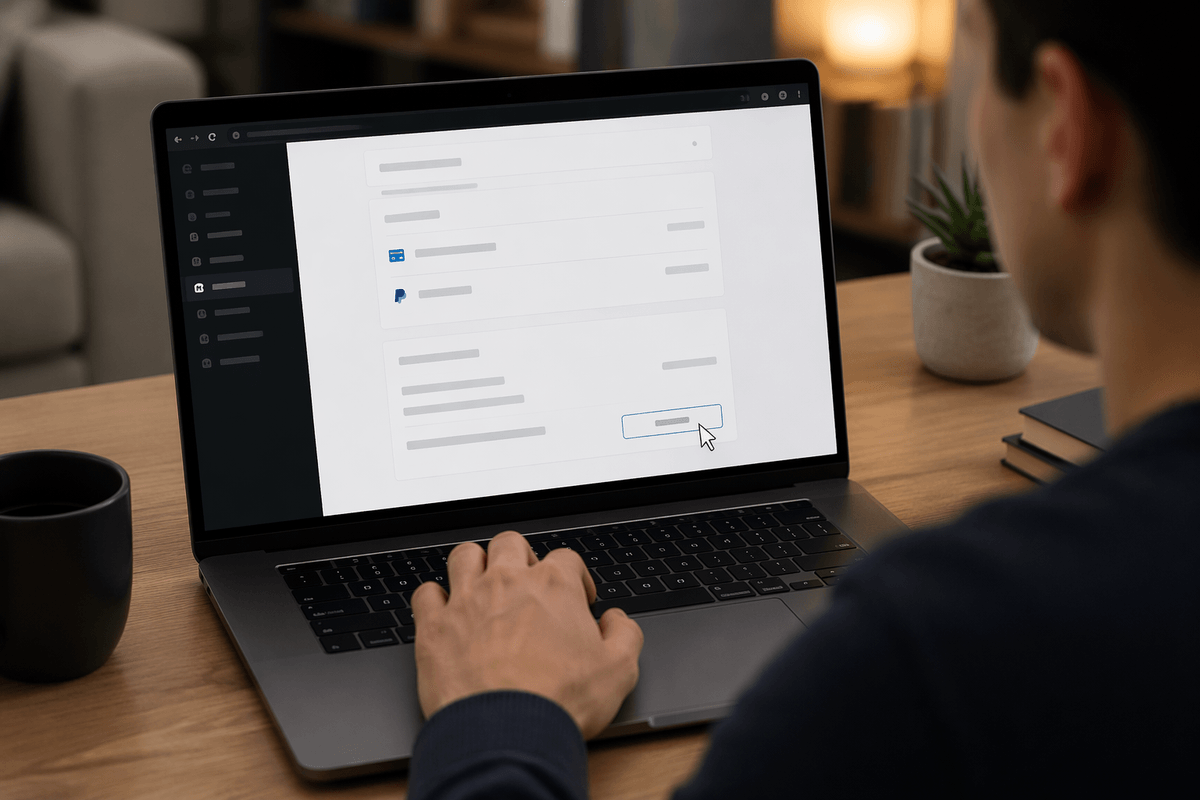
You’ll usually know you subscribed directly if your statement shows “Paramount+” (or “CBS All Access”) without Apple/Google/Amazon/Roku wording, and your account page shows a saved card or PayPal. To cancel, sign in on the Paramount+ website in a browser (not just the mobile app), open your profile or account settings, and go to the subscription/billing area. Look for an option like Cancel Subscription or Turn Off Auto-Renew, then follow the prompts until you see a confirmation message on-screen.
Use a small but important habit here: take a screenshot of the final confirmation page and keep the confirmation email if one arrives. Many people stop after clicking “cancel” once, but the site may ask you to confirm again on a final screen. Expect to keep access through the end of your current paid period; what you’re doing is preventing the next renewal. If you don’t see a cancel option, you’re likely billed through a third party or you’re signed into the wrong account.
Cancel on iPhone or iPad: Apple subscriptions
If your statement shows APPLE.COM/BILL (or you have an Apple receipt), you need to cancel in Apple’s subscription settings, not in Paramount+. On iPhone or iPad, open Settings, tap your name at the top, tap Subscriptions, then find Paramount+ (it may still display as CBS All Access on older receipts). Tap it, choose Cancel Subscription, and confirm. If you don’t see Paramount+ there, you’re likely signed into a different Apple ID than the one used to subscribe—check any other Apple IDs you use, especially a work or family account.
Two practical notes: you can’t cancel if Screen Time restrictions block account changes, and you may need the Apple ID password to confirm. After canceling, Apple usually keeps your access active until the current billing period ends; the key is that it won’t renew again.
Cancel on Android: Google Play subscriptions
If your charge looks like GOOGLE*Paramount (or you have a Google Play receipt), cancel through Google Play. On your Android phone or tablet, open the Google Play Store app, tap your profile icon, then go to Payments & subscriptions > Subscriptions. Find Paramount+ (it may appear under an older label like CBS All Access), tap it, then choose Cancel subscription and follow the prompts until you see the cancellation confirmed.
If Paramount+ isn’t listed, you’re probably signed into the wrong Google account. Switch accounts in the Play Store and check Subscriptions again. Also watch for practical blockers: you may need to update Play Store, and you’ll need the device passcode if your phone requires it. After canceling, access typically continues through the end of the paid period; you’re stopping the next renewal.
Cancel through Amazon, Roku, or your TV provider
If your statement shows AMAZON or you remember signing up through Prime Video Channels, your subscription is managed by Amazon. Go to Amazon (web or app), open Your Account, then look for Memberships & Subscriptions or Prime Video Channels, find Paramount+, and turn off auto-renew/cancel. If you’re on Fire TV, you may still end up on the same Amazon account page—make sure you finish on a confirmation screen, not just a “manage” screen.
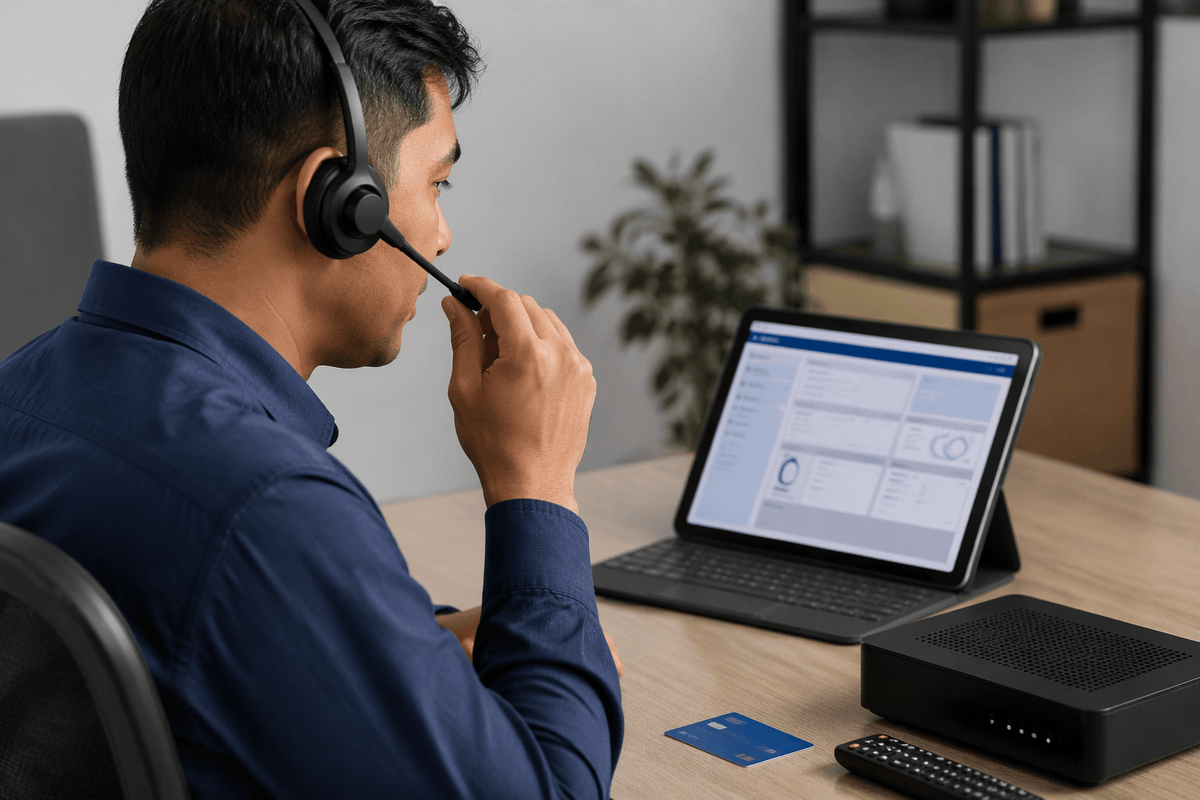
If you see ROKU on your card, cancel in your Roku account. The quickest path is signing in at my.roku.com, opening Subscriptions, selecting Paramount+, and choosing Unsubscribe; you can also do it from the Roku device by highlighting the Paramount+ app, pressing the * button, and managing the subscription. For cable/satellite or a live TV provider bundle, cancellations happen through that provider’s billing portal or customer support, and it can take longer to process. You’ll typically keep access until the end of the current paid period, but provider bundles sometimes change immediately when the package changes.
After canceling: confirm, keep access, and stop renewals
Right after you cancel, look for two proofs: an on-screen confirmation (or “Your subscription will end on…” date) and a receipt-style email from the company that bills you. Save both. If you canceled on the Paramount+ website, also check your Paramount+ account page—your plan should show canceled, ended, or auto-renew off. If you canceled through Apple, Google Play, Amazon, Roku, or a TV provider, verify it in that same subscriptions page; Paramount+ may still look “active” inside the app because access usually runs until the end of the paid period.
Give it a minute, then force-close and reopen the Paramount+ app, or sign out and back in, to refresh status. Don’t “resubscribe” to test it—starting a new plan can create a new renewal. One practical constraint: family/shared accounts make it easy to check the wrong login and think the cancellation failed.
If you’re still getting charged: quick fixes and support routes
A surprise charge usually means you canceled in the wrong place, or a second account is still active. First, match the charge descriptor to a billing owner: APPLE.COM/BILL (Apple), GOOGLE* (Google Play), AMAZON, ROKU, your cable provider, or “Paramount+” direct. Then open that platform’s subscriptions page and confirm Paramount+ shows canceled and has an end date. If it’s canceled but you were billed again, check timing: charges can post on the renewal date even if you cancel the same day after it renews. For help, contact the billing owner first (Apple/Google/Amazon/Roku/provider), not Paramount+.