A new MacBook Air generation—what actually changed this time
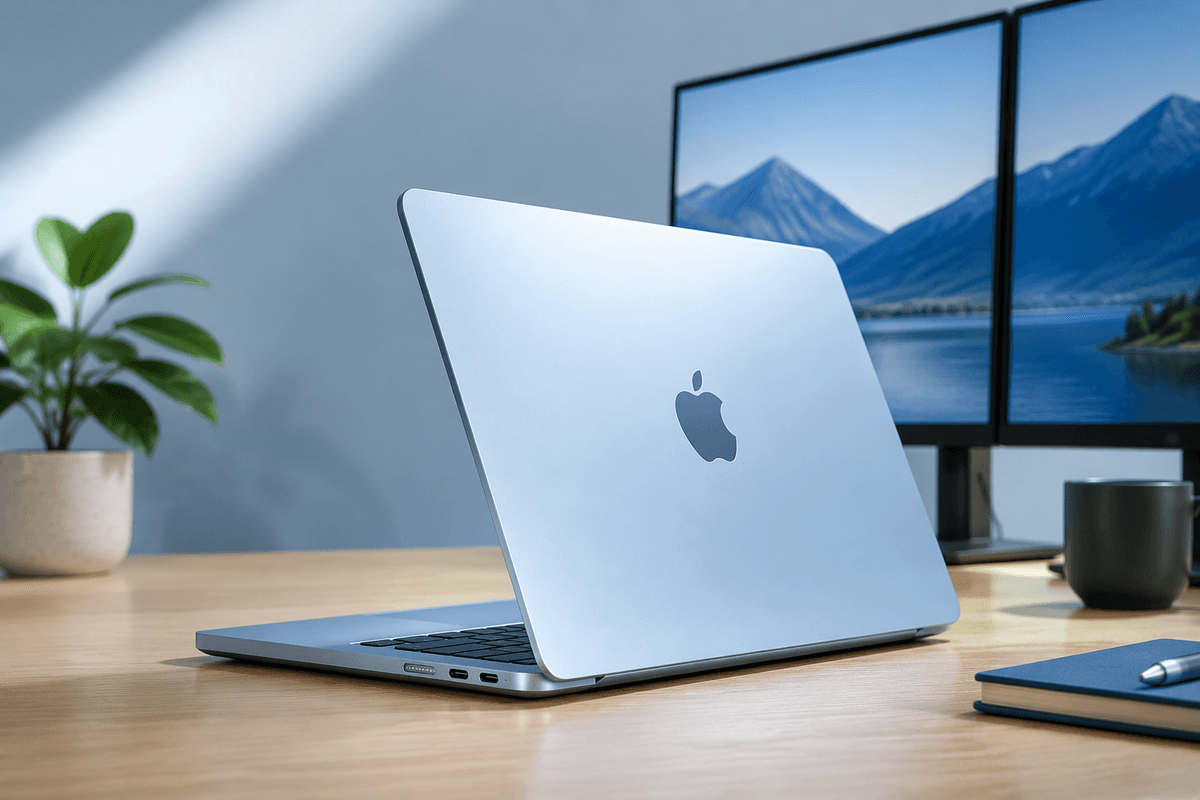
The M4 MacBook Air refresh is less about a new look and more about removing a few daily frictions. You’re getting the M4 chip, 16GB of unified memory as the new starting point, a 12MP Center Stage camera, and a new Sky Blue finish. It also finally supports up to two external displays while keeping the built-in display active, which is a meaningful change for desk setups.
Most of the “Air-ness” stays the same: thin, fanless, and quiet, with the familiar Liquid Retina screen and Apple’s “up to 18 hours” battery claim. Ports are still the same practical constraint—MagSafe plus two Thunderbolt/USB‑C ports—so many people will still want a hub for charging, storage, and multiple accessories.
Start with your use case: who benefits from M4 first
If your current laptop already feels “fast enough” for browser tabs, Office/Google Docs, Zoom, and light photo edits, the M4 Air won’t transform your day. The people who benefit first are the ones who regularly hit small slowdowns: students juggling big slide decks and dozens of tabs, remote workers living in video calls while running Slack and multiple work apps, and creators on a budget exporting short 4K videos, batch-processing photos, or compiling code. For those workloads, the combination of the newer chip and 16GB as the baseline matters more than raw benchmark bragging rights.
Desk users are another clear fit: two external displays while keeping the built-in screen active changes what “Air” can be in a home office. The practical catch is that the port situation still pushes you toward a hub or dock, which adds cost and clutter. If you’re already on an M3 Air with enough memory, this often looks more like a convenience upgrade than a necessity.
M4 performance in real life, not benchmark headlines
Day to day, M4 feels less like “everything is twice as fast” and more like fewer little pauses. Apps launch and switch a bit snappier, heavy webpages redraw more smoothly, and you’re less likely to feel the machine bog down when a video call, dozens of tabs, and a couple of productivity apps all pile up at once. The bigger practical win for many buyers is that 16GB starts you off with more breathing room, so macOS doesn’t have to lean on swap as quickly when you keep lots of stuff open.
Where you’ll actually notice M4’s headroom is short, repeatable bursts: exporting a batch of photos, rendering a quick timeline preview, compiling a project, or cleaning up audio while you multitask. The limitation is the same one every fanless Air has: long, sustained loads can slow down after the first stretch as heat builds. If your work is hours of renders, the MacBook Pro’s cooling still matters more than headline benchmarks.
AI features: when the Neural Engine matters—and when it doesn’t

You’ll feel the Neural Engine most in the quiet, “always on” stuff: real-time video call effects like background blur and subject tracking, faster on-device dictation and transcription, smarter photo and file organization, and the little ML-powered suggestions apps make without sending everything to the cloud. If you use tools that do on-device noise removal, voice isolation, or quick image selections, the M4 tends to keep those features responsive while you’re multitasking.
What it won’t do is magically make every “AI” feature better, because a lot of them are still limited by the app you use, your internet connection, or remote servers. Many writing and image features feel similar across recent Macs if they’re primarily cloud-driven. For buyers, the more practical lever is still memory: AI-heavy workflows often keep large models, assets, or histories in RAM, so paying for more unified memory (and enough storage to avoid constant juggling) can matter more than chasing a specific Neural Engine spec.
Battery, thermals, and silence: the Air’s defining trade-offs
You’ll notice the Air’s biggest “performance feature” when you don’t notice it at all: it stays silent. In normal use—web work, documents, streaming, and long video calls—the fanless design keeps the laptop cool enough to sit on your lap without distraction, and battery life tends to feel steady rather than fragile. The practical upside is simple: you can work a full day of mixed tasks without hovering over a charger, and the machine doesn’t ramp up noise the moment you open a heavier app.
The trade-off shows up when you ask for sustained output. A short export or compile can feel impressively quick, then slow down as heat builds because there’s no fan to push it out. That’s not a defect; it’s the design choice that makes the Air thin and quiet. If your “busy days” are mostly bursts with downtime between them, it works in your favor. If you routinely run long renders, large AI jobs, or extended gaming sessions, the Pro’s active cooling is still the more predictable tool.
Display, camera, speakers, and ports: the everyday experience checklist
The screen is still the familiar Liquid Retina panel: sharp, color-accurate (P3), True Tone, and bright enough at 500 nits for most indoor work, but it’s not a high-refresh display, and it won’t fight glare like a good matte monitor can. If you’re coming from an older Intel Air/Pro, it still looks like a big jump; if you’re coming from an M2/M3 Air, it’s basically the same daily experience.
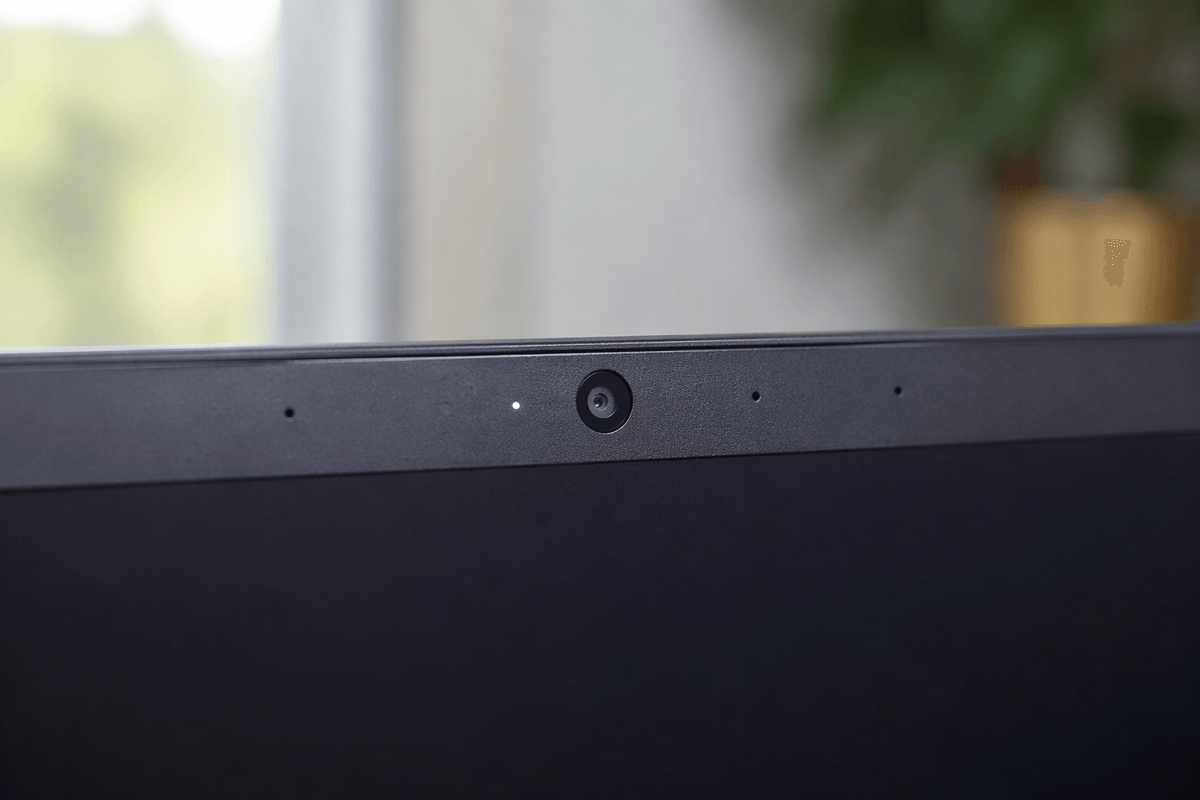
The more noticeable “every time you open the lid” change is the 12MP Center Stage camera (with Desk View) paired with a three-mic array—better framing and cleaner call audio without fiddling. Speaker quality depends on size: the 13-inch uses a four-speaker setup, while the 15-inch steps up to a six-speaker system with force-cancelling woofers, so the bigger model fills a room more comfortably. Ports remain the constraint: MagSafe plus two Thunderbolt 4/USB‑C ports and a headphone jack, which means many desk setups still end up buying a hub. The good news is display support: up to two external displays (up to 6K/60Hz) while keeping the built-in screen active.
Pricing, configurations, and the smartest upgrade paths
Pricing is where the M4 Air can either look like the obvious buy or an easy skip. The launch baseline was 16GB unified memory, so the “entry model” is no longer the cramped one—but Apple’s upgrade pricing still nudges you to decide up front. Treat memory as the one choice you can’t fix later: if you keep lots of tabs open, live in Teams/Zoom, or do light photo/video work, 24GB is the configuration that tends to stay comfortable the longest. Storage is more negotiable because external SSDs are cheaper, but they’re one more thing to carry and plug in.
The smartest upgrade paths are mostly about avoiding the middle. If you’re coming from an Intel Mac or an 8GB M1, the base M4 is a big quality-of-life jump. If you already have an M2/M3 Air with 16GB and enough storage, the better “upgrade” is often a bigger monitor, a good dock, or saving toward a Pro—especially if your work is sustained exports where cooling matters. The 15-inch is worth it mainly for the bigger screen and better speakers, not because it changes the chip story.
Bottom line: the simplest way to decide in five minutes
If you’re on an Intel Mac, an 8GB M1 Air, or you’re stuck on one external monitor and it’s limiting your desk setup, the M4 Air is the easy buy—get the size you like, then pick memory based on how “open-tab heavy” your days are (16GB for light, 24GB if you multitask hard or do creative work). If you already have an M2/M3 Air with 16GB and you’re not hitting slowdowns, keep it and spend the money on a monitor, dock, or storage. If your week includes long renders or sustained heavy workloads, skip the Air and buy a Pro for the cooling.