Why location services matter (and when you actually need them)
You usually notice location services only when something breaks: Maps can’t start navigation, a ride-share pins you to the wrong block, delivery apps can’t find your address, or your weather app shows a different city. On both iPhone and Android, these features rely on a mix of GPS, Wi‑Fi, Bluetooth, and cell towers, so “location off” or the wrong permission can make an app feel unusable.
You don’t need location on all day for every app. Most people only need it for maps, ride-share, delivery, fitness tracking, camera geotags, and “Find My”/device-finding. Everything else is optional—and keeping location enabled everywhere can cost some battery and share more data than you intended, so it’s worth choosing access deliberately.
Turn on Location Services on iPhone (device-wide switch)
You’ve probably seen an iPhone prompt that says an app needs Location Services, but the first thing to check is the device-wide switch. Go to Settings > Privacy & Security > Location Services. Turn Location Services on. If it’s off, no app can locate you, even if you previously allowed access.
While you’re on that screen, make sure you’re not in a low-connectivity situation that will make location look “broken.” If you’re in Airplane Mode, underground, or have weak Wi‑Fi/cellular, accuracy can drop or stall. Also check that your iPhone isn’t in an extreme power-saving routine—Low Power Mode can reduce background activity, which affects apps that try to update location in the background.
Choose the right iPhone app permission: Never, Ask, While Using, Always
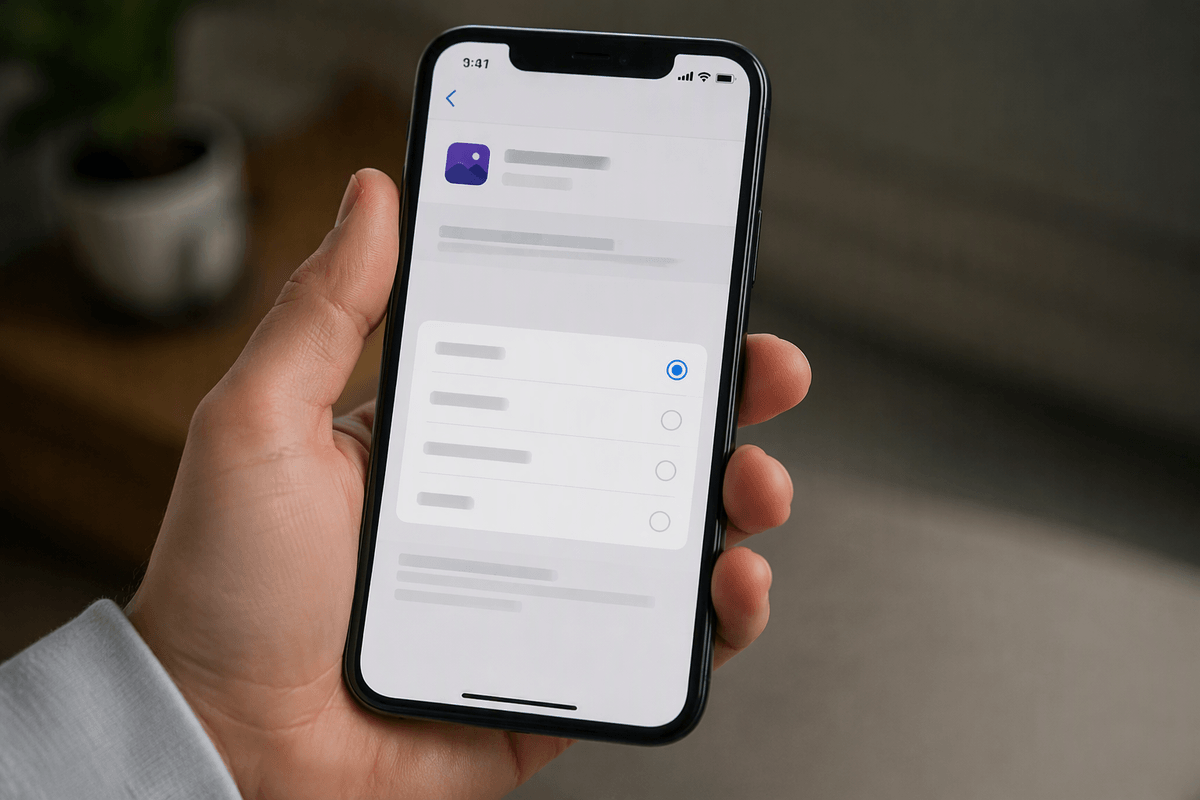
Once Location Services is on, each app still has its own permission. Go to Settings > Privacy & Security > Location Services, tap the app, then choose the access level. Never blocks location completely (good for most games, shopping, and social apps unless you use location features). Ask Next Time Or When I Share is useful if you only sometimes need it, but the repeated prompts can get annoying in the middle of a ride request or navigation.
While Using the App is the default best choice for Maps, ride-share, delivery, and local weather because it works when the app is open and limits background tracking. Always is for things that must update in the background—fitness routes, safety check-ins, automations, and some device-finding features—but it can use more battery and creates more location history. If an app “can’t find you” until you reopen it, switching from While Using to Always is often the fix.
Turn on Location on Android (Quick Settings and full settings path)
On Android, the fastest check is the Quick Settings panel. Swipe down from the top of the screen (sometimes twice) and look for the Location tile. If it’s off, turn it on and try your app again—this is the system-wide switch, so Maps, ride-share, and delivery apps won’t be able to place you accurately without it.
If you don’t see the tile or you want the full settings path, open Settings > Location (on some phones: Settings > Security & location or Settings > Privacy > Location) and toggle Use location on. If location still seems “stuck,” confirm you’re not in Airplane mode, and remember that Battery Saver can slow or limit location updates, especially when an app is trying to lock on in the background.
Fix Android app permissions: Allow all the time vs only while using
If Location is on but one app still can’t place you, it’s usually an app permission issue. Go to Settings > Apps (or Apps & notifications) > select the app (Maps, Uber/Lyft, DoorDash, etc.) > Permissions > Location. For most apps, choose Allow only while using the app. Also look for Use precise location; if it’s off, you may get “you’re on the wrong street” accuracy even when permission is allowed.
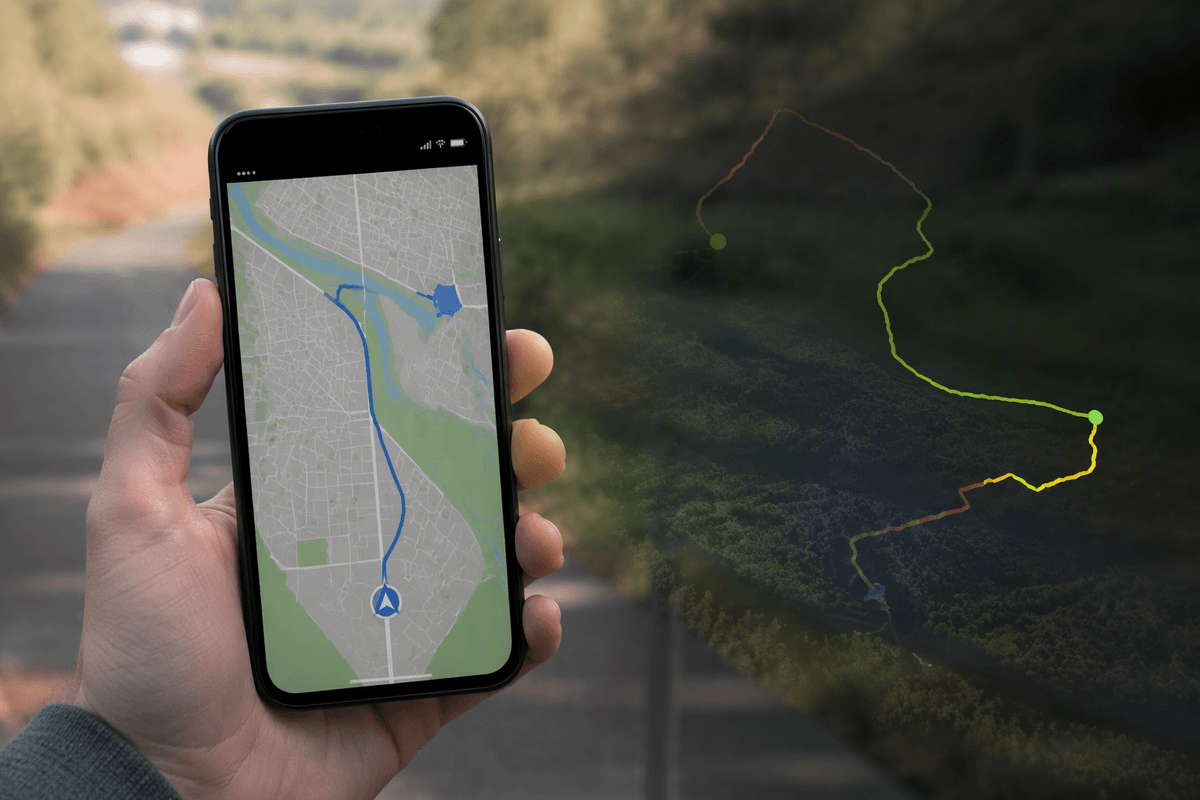
Allow all the time is for features that must keep updating when you’re not actively looking at the screen: fitness route tracking, safety/check-in apps, geofence routines, and some “find my device” or anti-theft tools. The trade-off is real: more background tracking and usually more battery drain, and some Android builds will still restrict background location unless you exclude the app from battery optimization.
Accuracy, battery, and privacy: the settings people overlook
You’ve probably seen the “blue dot” drift or a pin jump to the next street. That’s usually not “GPS is broken,” it’s “precision got downgraded.” On iPhone, check the app under Settings > Privacy & Security > Location Services and make sure Precise Location is on for apps that need turn-by-turn accuracy. On Android, look for Use precise location in the app’s Location permission screen. If you’re indoors, between tall buildings, or in a parking garage, accuracy can still be limited even with the right settings.
Battery controls quietly cause a lot of “location won’t update” complaints. Low Power Mode (iPhone) and Battery Saver (Android) can pause background work, and Android’s battery optimization can stop “Allow all the time” from behaving like it should unless you exclude that app. Privacy-wise, use While Using for ride-share, maps, and delivery, and reserve Always/Allow all the time for apps that truly need background tracking—then turn it back down when you’re done.
When location still won’t work: quick troubleshooting checklist
You open Maps or a ride-share app and it still says “finding your location,” even though the toggles look right. Start with the basics that block signals: turn off Airplane Mode, step near a window or outside for 30–60 seconds, and confirm Wi‑Fi or cellular data is actually on (GPS alone can be slow to lock). If you’re on work profile, try pausing it—some setups interfere with “nearby” network checks that speed up location.
Then check what the app can do. Make sure it has While Using (or Allow only while using) and Precise Location/Use precise location enabled. If the feature needs background updates (live tracking, safety, route logging), switch to Always/Allow all the time and, on Android, remove battery restrictions for that app—this costs battery, so only do it when you truly need it. If it’s still stuck, force-quit and reopen the app, toggle Location off/on, restart the phone, and install pending app/OS updates before assuming the GPS hardware is failing.
Wrap-up: a simple way to keep location working safely
A simple default that keeps most people out of trouble is: leave the phone’s main Location switch on, and keep most apps set to While Using (iPhone) or Allow only while using (Android), with Precise Location enabled only for apps that truly need turn-by-turn accuracy. When you need background tracking—fitness routes, safety check-ins, or device-finding—temporarily switch that one app to Always/Allow all the time, and remember it can cost real battery (and more location history). If something breaks, check Airplane Mode, Wi‑Fi/cellular, Battery Saver/Low Power Mode, and the app’s permission before reinstalling anything.