Creating Office or Google files without leaving Dropbox
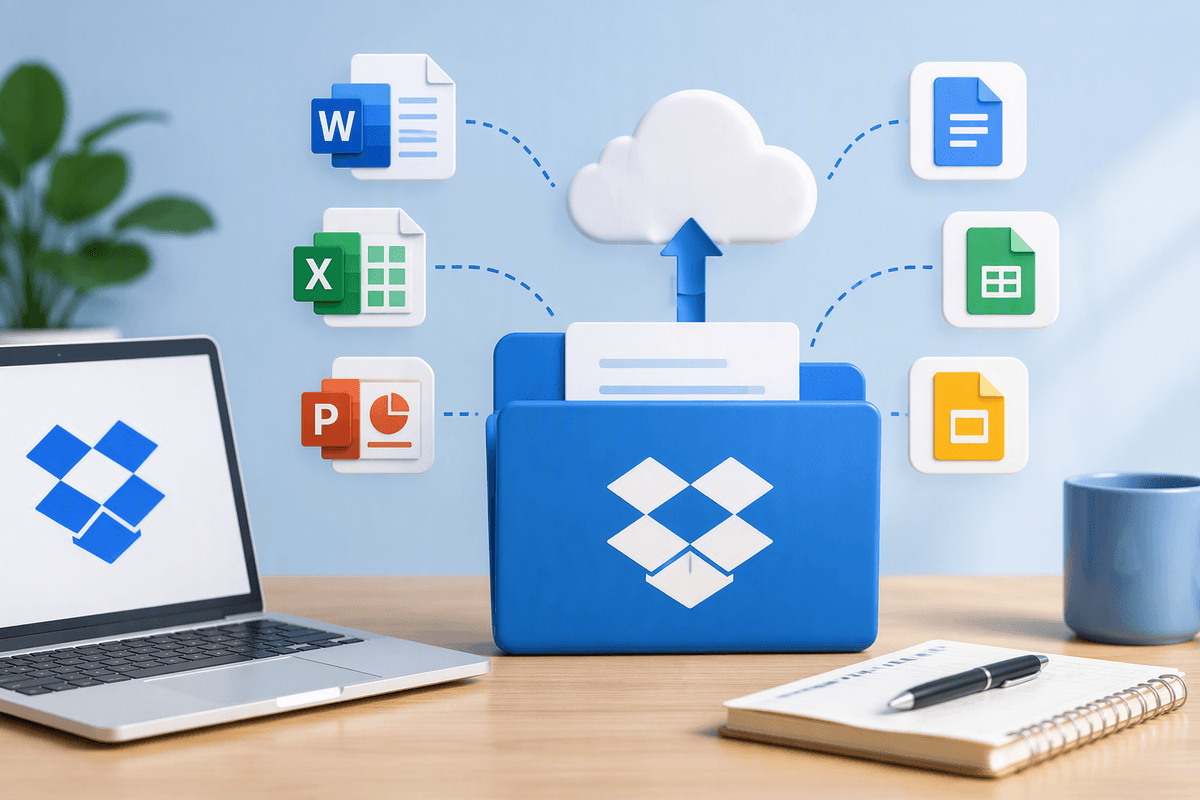
You can start a new Microsoft Word, Excel, or PowerPoint file—or a Google Doc, Sheet, or Slide—right from Dropbox, and have it land in the correct folder from the start. For Office files, Dropbox typically creates a real .docx/.xlsx/.pptx file in that folder, which you can open and edit with Office (web or desktop, depending on your setup). For Google files, Dropbox usually creates a linked Google item that opens in Google’s editor, but still appears in Dropbox like a file.
The payoff is fewer “where did I save that?” moments and less cleanup later. The trade-off is that it only works cleanly when your accounts are linked and you have permission to create files in that folder; on some plans or managed team setups, the create options can be limited or disabled.
Check your setup first: accounts, permissions, and plan limits
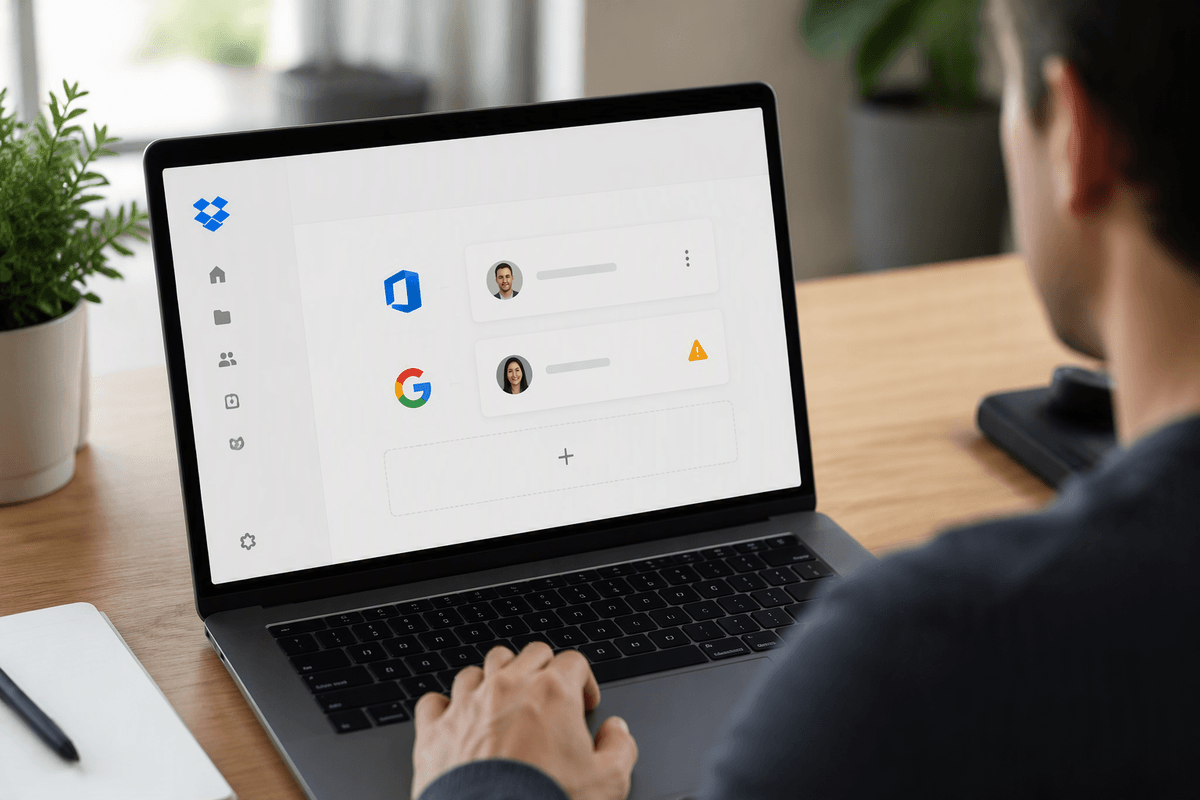
Before you rely on the Create button, make sure Dropbox is allowed to talk to the service you’ll actually edit in. For Microsoft Office, confirm you’re signed into the right Microsoft account in your browser or desktop apps, and that your device has Office installed if you expect files to open locally. For Google, you’ll need to link the correct Google account to Dropbox (especially if you have both a personal and school/work Google login), or you’ll get bounced to the wrong Drive or see “can’t access” messages.
Also check basics that block file creation: you must have edit access in the Dropbox folder (not “view only”), enough storage to sync new files, and any team admin restrictions that disable integrations. Some features behave differently on free vs paid plans, and managed work accounts may require an admin to approve Microsoft/Google app access.
Create a Microsoft Office file directly from Dropbox
You’re in a Dropbox folder, you need a blank Word doc (or an Excel tracker), and you don’t want to open Office first and then hunt for the right save location. In the Dropbox website, open the target folder, click Create, then choose Microsoft Word, Microsoft Excel, or Microsoft PowerPoint. Dropbox will generate a real .docx, .xlsx, or .pptx file right there, and you can rename it immediately so it doesn’t become “Document (1).”
When you click to open it, Dropbox may send you to Office on the web in your browser, or it may hand off to the desktop app if it’s installed and associated with that file type. If you expect the desktop app and it keeps opening in a tab, that’s usually a local setup issue (Office not installed, not signed in, or file associations). One practical constraint: on locked-down work accounts, the Create option can be missing until an admin allows the Microsoft integration.
Create a Google Docs, Sheets, or Slides file from Dropbox
You’re in the right Dropbox folder and you want a Google Doc, Sheet, or Slide to start there—not in whatever Drive folder Google defaults to. In the Dropbox website, open the target folder, click Create, then pick Google Docs, Google Sheets, or Google Slides. Dropbox will add a Google item in that folder that looks like a file, but it’s really a link to the document living in Google. Click it and it opens in Google’s editor under the Google account you linked.
Name it right away in Dropbox so the folder stays tidy. If it opens the wrong account, you’re usually signed into multiple Google profiles in the browser—switch accounts in Google first, then reopen from Dropbox. One constraint to plan for: if you don’t have edit permission on the Dropbox folder, or your team admin blocks Google linking, the Google create options may not appear or may fail when you try to save.
Pick the right method: Dropbox web, desktop apps, or mobile
You’ll usually get the cleanest “create it in the right folder” result on the Dropbox website, because the Create menu is consistent and it’s easiest to confirm you’re in the correct location before you start. If you live in Finder/File Explorer with the Dropbox desktop app, you can still create Office files by making a new Word/Excel/PowerPoint file in the synced folder, but you’re relying on local app setup and sync timing—if you’re offline or paused, the file exists locally first and may not show up for teammates right away.
Mobile is best for quick starts, not perfect structure. You can create and upload files from the Dropbox app, but options vary by device and organization settings, and it’s easier to accidentally land a new file in the wrong folder when you’re navigating on a small screen. When accuracy matters (client folders, shared team spaces), default to the web, then open in the editor you prefer.
Collaboration realities: sharing, versions, and “who owns the file”
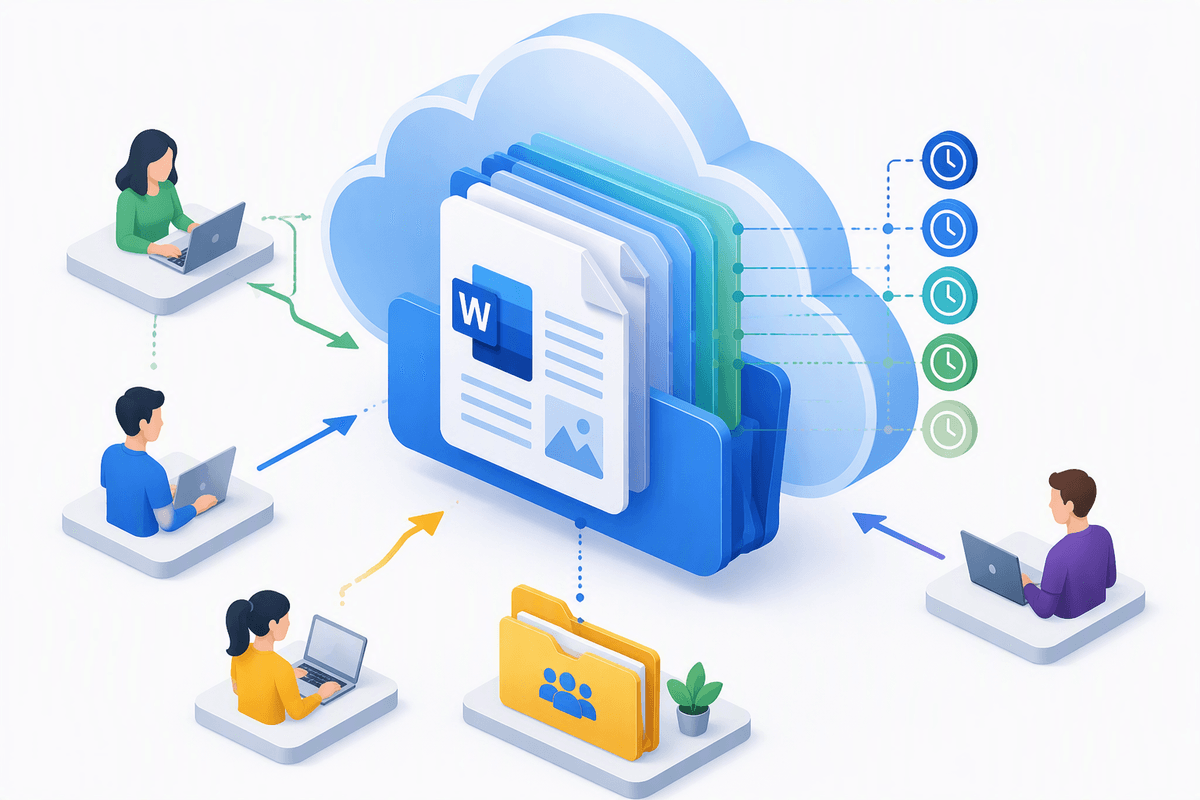
You’ll feel the differences once you’re working with other people. An Office file created in Dropbox is a normal file that lives in that folder, so Dropbox sharing works the way you expect: anyone with edit access can open it, and Dropbox keeps the version history on the file itself. The practical catch is timing—if someone creates it in a desktop-synced folder while offline or sync is paused, teammates won’t see it until it uploads, and “I can’t find it” turns into a real problem.
Google files behave more like a pointer: the item shows in Dropbox, but access is ultimately controlled by Google. That’s where “who owns the file” matters. If the Doc is owned by a personal Google account but your collaborators use a work account, they may open the Dropbox item and still get blocked in Google, even though they can see it in the Dropbox folder. If you want smooth collaboration, agree on the owning Google account (or shared drive policy) up front, and don’t assume Dropbox folder access automatically grants Google edit rights.
Troubleshooting when the Create button or app linking fails
You click Create and the option you need is missing, or you pick Word/Google Docs and nothing usable happens. Start with the boring checks that fix most cases: confirm you’re on the Dropbox website in the correct folder (not a “view only” shared link), and that you have Can edit access. If you’re in a team space or client folder, an admin policy can hide Microsoft/Google integrations entirely, so the menu won’t match what someone else sees.
If the button is there but linking fails, sign out of extra Google/Microsoft accounts in the browser, then relink from Dropbox using the exact account you want to own the documents. Pop-up blockers and strict browser privacy settings can break the handoff, so try a private window or another browser. One practical constraint: school/work accounts often require admin approval, and you may need to wait for that before Create works consistently.
A simple workflow to standardize file creation in your folders
When you want fewer mistakes, treat file creation like a small checklist. Always navigate to the correct Dropbox folder first (web is safest), click Create, and immediately rename the file using a consistent pattern like Client - Project - YYYY-MM-DD - Topic. For Office files, open once and confirm it’s a real .docx/.xlsx/.pptx sitting in that folder. For Google items, open once and confirm the Google account shown in the top-right is the one your team uses to own shared docs.
If you’re on desktop, avoid creating new files while offline or with sync paused, because teammates won’t see them when they expect. Standardize a “home” subfolder like 00 - Drafts so new docs don’t get scattered, and move them only after they’re named and confirmed to open correctly.