Your laptop needs mobile data: what “access” really means
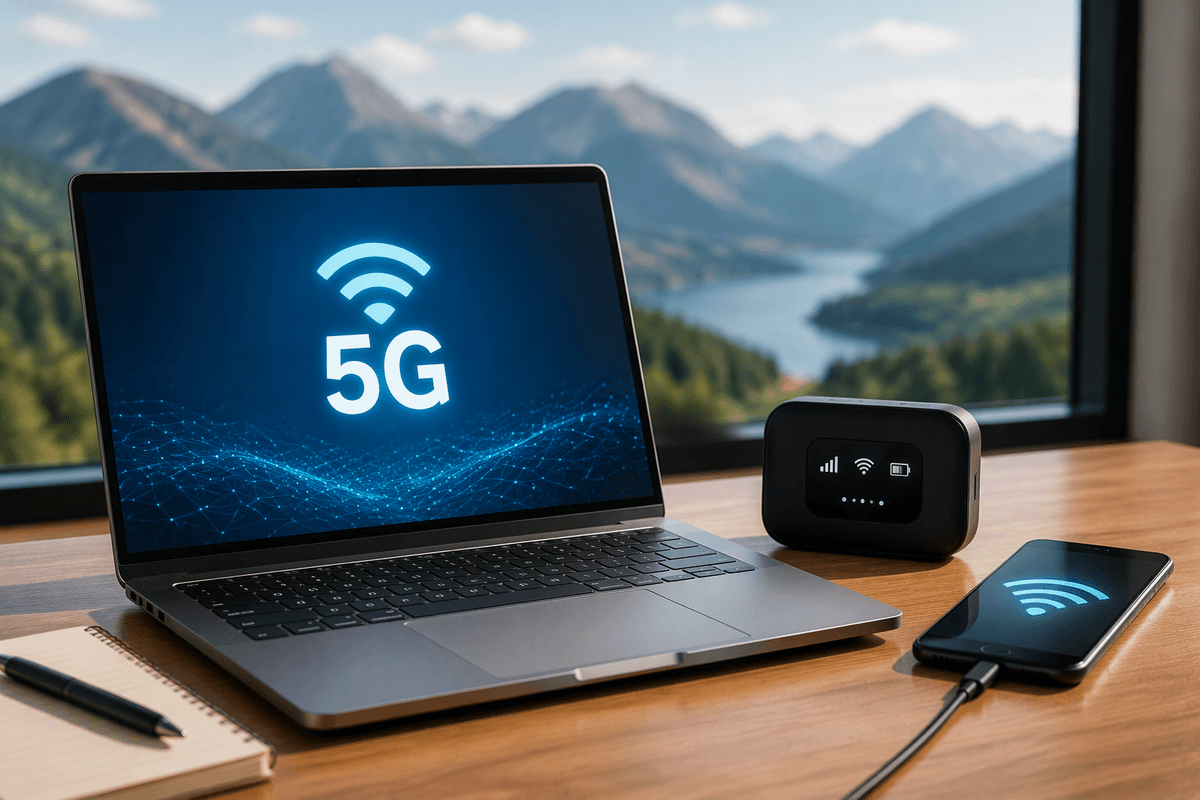
When your laptop “needs 4G/5G,” it usually doesn’t mean the laptop must contain a cellular radio. It means the laptop needs a path to the cellular network through something else: your phone acting as a hotspot, a separate mobile hotspot, a USB modem/dongle, or a laptop with built-in cellular (often called LTE/5G or WWAN). Each path creates the same basic outcome—your laptop gets an IP connection—but the trade-offs differ in setup effort, battery drain, reliability, and what your carrier allows.
“Access” also includes the hidden limits: plan rules (hotspot vs. on-device data), coverage where you actually use it, and speed slowdowns after a threshold. The cheapest option can become the most frustrating if it overheats your phone, drops under weak signal, or quietly triggers extra charges.
Start with your situation: travel, home backup, or daily work
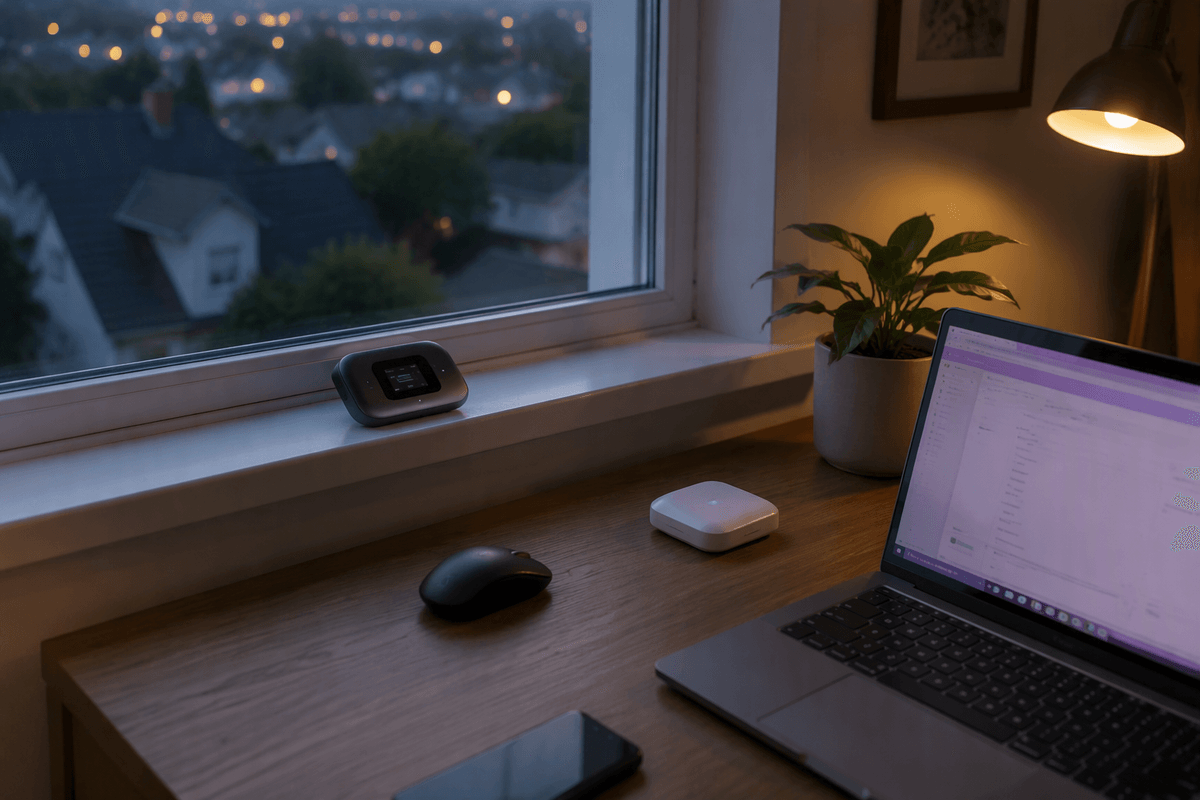
The right option depends less on “4G vs. 5G” and more on how often you’ll use it, where, and how many devices need to share it. If you travel occasionally, your phone hotspot is usually the fastest path to “good enough” because it’s already in your bag—just confirm your plan includes hotspot data and that your phone can stay plugged in. For frequent travel (airports, hotels, client sites), a dedicated mobile hotspot can be steadier for long sessions and can keep your laptop online while your phone handles calls and maps, but it’s another device to charge and pay for.
For home internet backup, prioritize reliability over peak speed: a portable hotspot near a window (or a travel router paired with a hotspot) is often more stable than a phone left tethering for hours. For daily work—video calls, large uploads—look hardest at data caps and throttling. The constraint is usually the plan, not the laptop: “unlimited” often has a hotspot limit that changes the experience after you hit it.
Using your phone as a hotspot without draining it
You’ve probably seen this: the hotspot works fine for 20 minutes, then your phone gets hot, the battery starts falling fast, and the connection gets flaky right when you join a call. Treat hotspot use like a power-and-heat problem first, and a networking feature second. If you can, plug the phone into power and set it on a hard surface with airflow (not under a pillow, not in a pocket, not wedged in a car console). Battery drain and heat are the main reasons phones throttle performance or shut radios down.
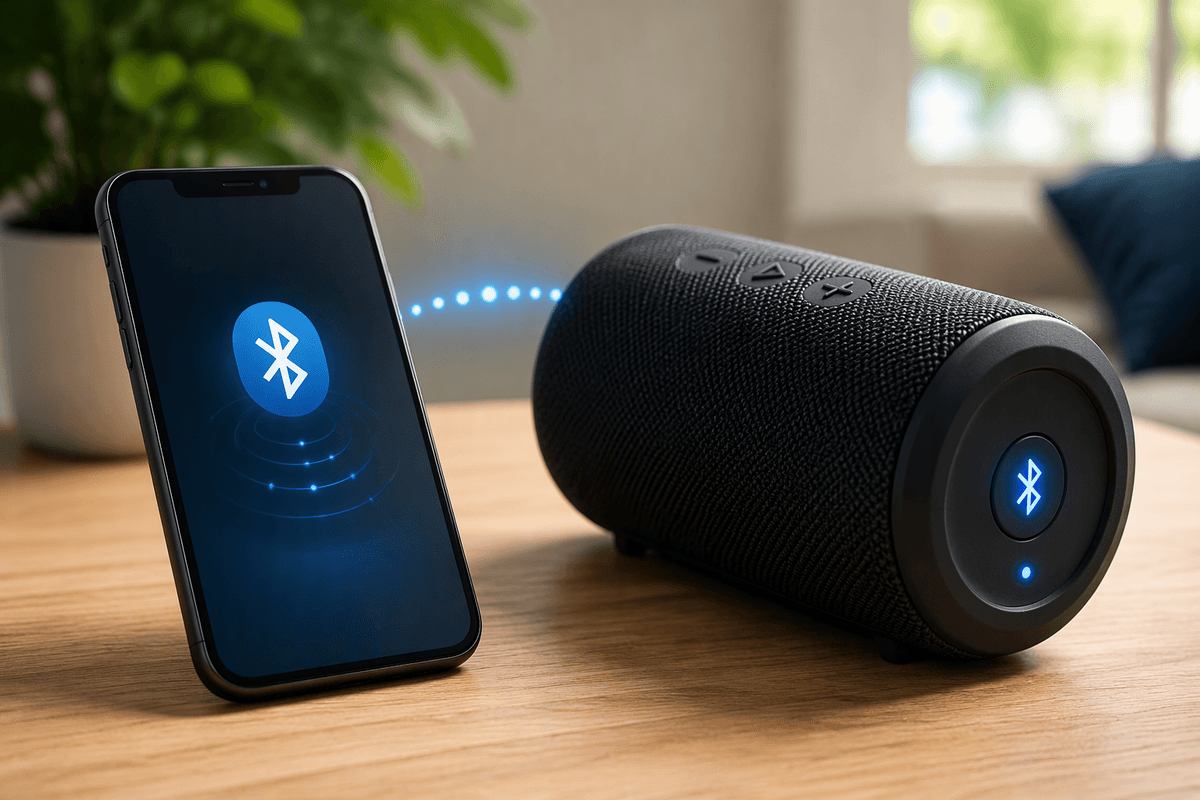
For the connection itself, use Wi‑Fi hotspot for convenience, but switch to USB tethering when you’ll be online for hours. USB tethering is often more stable and can keep the phone charged while it shares data. On iPhone, “Personal Hotspot” supports Wi‑Fi and USB; on Android, look for “Hotspot & tethering” and enable USB tethering after plugging in. Either way, set a strong hotspot password, and expect a practical limit: many carrier plans cap hotspot data or slow it down after a threshold, even when phone data is “unlimited.”
Getting a laptop with built-in 4G/5G: worth it?
You’ll see laptops marketed with “LTE” or “5G” built in (often labeled WWAN). The appeal is simple: you open the lid, the laptop connects like a phone, and you’re not depending on hotspot setup or your phone’s battery. For frequent travel or field work, that convenience is real—especially for quick check-ins, airport delays, or hopping between meetings where Wi‑Fi is unreliable or risky.
The trade-offs show up in cost and compatibility. The cellular version of a laptop usually costs more up front, and you still need a separate data plan (often a dedicated line) that may not be cheap. You also have to match the modem to your carrier’s supported bands, and some models are locked to a specific carrier or use eSIM provisioning that’s more limited than a phone. Performance can be steadier than a hotspot, but it won’t magically beat weak coverage where you work.
USB cellular dongles and data sticks: simple, but not always
You’ll still see USB cellular modems (“dongles” or “data sticks”) sold as a quick way to give a laptop 4G/5G: plug in USB, install a driver or app, sign in to a plan, and you’re online. When they work well, they’re simpler than managing hotspot settings and they avoid tying up your phone. They can also be convenient on older laptops without good Wi‑Fi or for locked-down work machines where you can’t add new Wi‑Fi networks easily.
The catch is compatibility and management. Some dongles are carrier-locked, some need specific APN settings, and some rely on software that’s inconsistent across Windows vs. macOS (and often a non-starter on Chromebooks). Small USB modems can also run hot, especially on 5G, and the antenna is tiny—so a phone or dedicated hotspot placed by a window may outperform it. Plan-wise, you may still be buying a separate data line, not “sharing” your phone plan.
Portable 4G/5G hotspots and travel routers for multiple devices
If you’ve ever tried to keep a laptop, tablet, and a second phone online at once, a dedicated 4G/5G hotspot is usually the cleanest setup: one cellular device stays put, broadcasts Wi‑Fi, and everything connects to it like normal. In practice, it’s also easier to position for signal—near a window, higher up in a room, or away from metal—without forcing your phone to live there all day. The upside is consistency: your laptop stays online while your phone handles calls, navigation, and two-factor codes. The cost is real, though: you’re buying hardware plus a plan (often a separate line), and the “unlimited” label can still hide a hotspot threshold.
A travel router is a different tool: it doesn’t add cellular by itself, but it can make sharing cleaner. In a hotel or rental with sketchy Wi‑Fi, a travel router can connect once, then create your own private network for all your devices. Paired with a hotspot via USB or Wi‑Fi, it can also extend range and keep the hotspot’s battery from doing all the work.
Plans, coverage, and limits: avoiding slowdowns and surprises
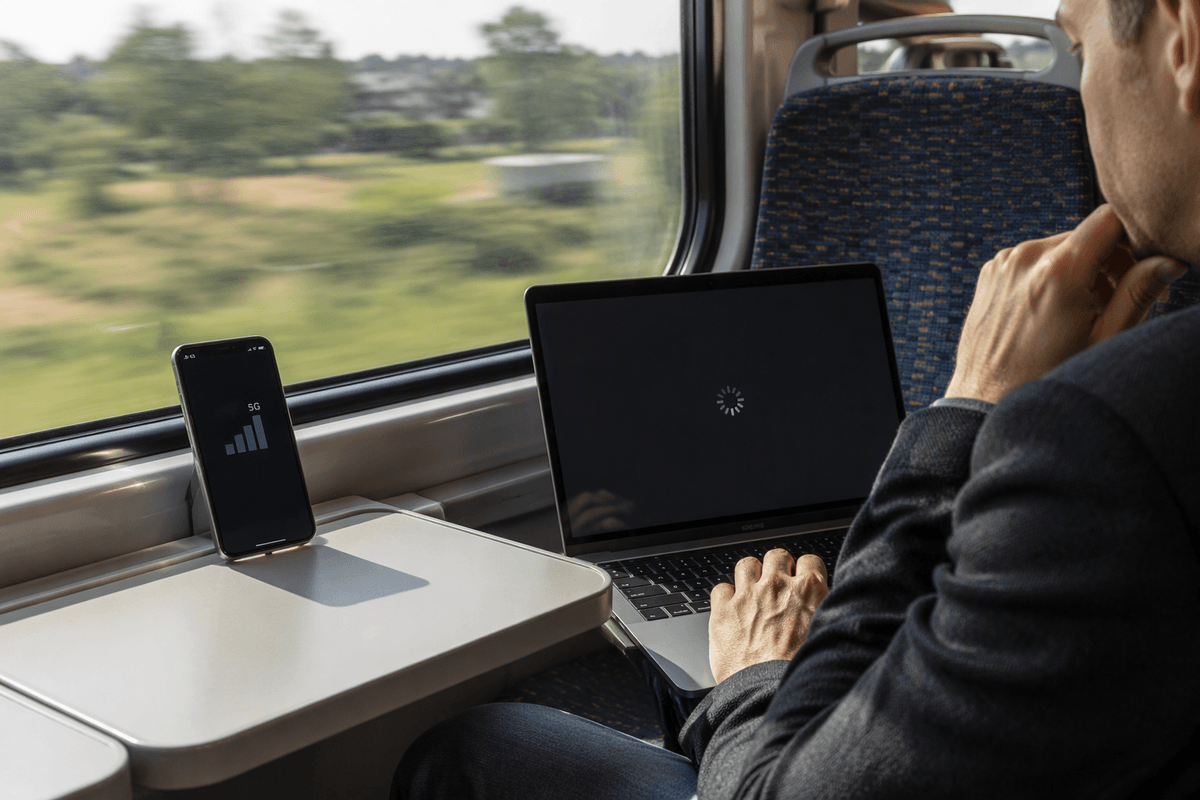
You notice the plan details the first time your “unlimited” connection turns into a crawl mid-call. Carriers commonly separate on-device data from hotspot/tethering data, and the hotspot bucket is often much smaller. After you hit it, you may not get cut off—you just get deprioritized or throttled, which feels like random instability.
Coverage is the other hidden variable. A fast 5G icon in one neighborhood doesn’t help at your hotel, job site, or on a train. Before you buy hardware or add a line, check the carrier’s map for the exact places you use most, then do a real-world test: a 10–15 minute video call, a file upload, and a few speed checks at the times you’ll work. Plan for practical costs too—taxes, device payments, and overage rules on “limited” data lines.
A quick picking guide for the best option today
If you only need internet occasionally, start with your phone: use Wi‑Fi hotspot for short bursts, and switch to USB tethering for long sessions so the phone stays charged and runs cooler. If you work away from Wi‑Fi weekly (or share with multiple devices), a dedicated 4G/5G hotspot is usually the most predictable day-to-day setup—budget for the device plus a separate line, and assume you’ll hit a hotspot threshold on “unlimited” plans. If you travel constantly and want the least fuss, a laptop with built-in WWAN is the smoothest experience, but it’s the priciest and plan options can be narrower. Consider a USB dongle mainly when Wi‑Fi hotspot isn’t allowed or you need a plug-in option on a specific laptop.