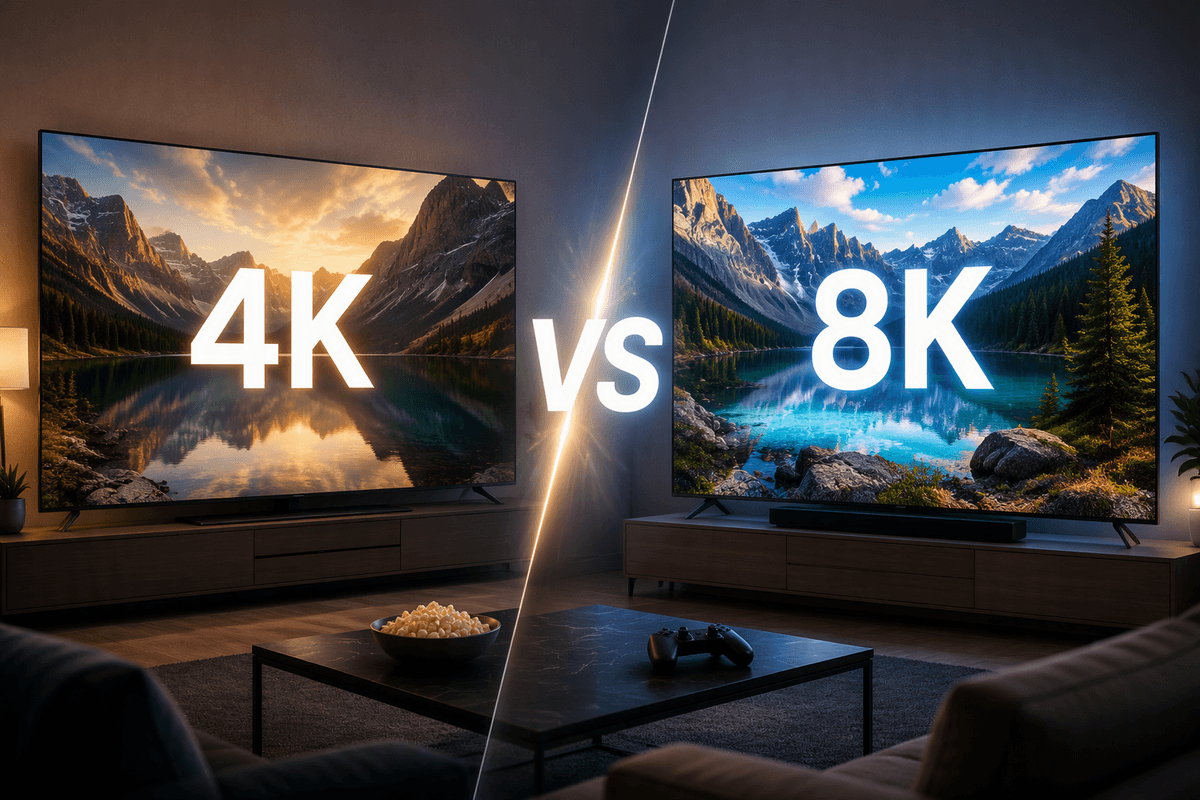
The TV aisle is noisy—what are you optimizing for?
Most TVs look “great” on a bright showroom wall, then feel disappointing at home because you bought for the label instead of your room and habits. Before you compare brands, pick the outcome you care about most: movies in a dim room, daytime news with glare, live sports with lots of motion, or gaming responsiveness. Those priorities point to different trade-offs in brightness, contrast, motion handling, and input lag. Also decide what would annoy you: slow menus, missing apps, or a TV that tracks usage too aggressively. You can’t maximize everything on a realistic budget.
Pick the right size first, then confirm it fits
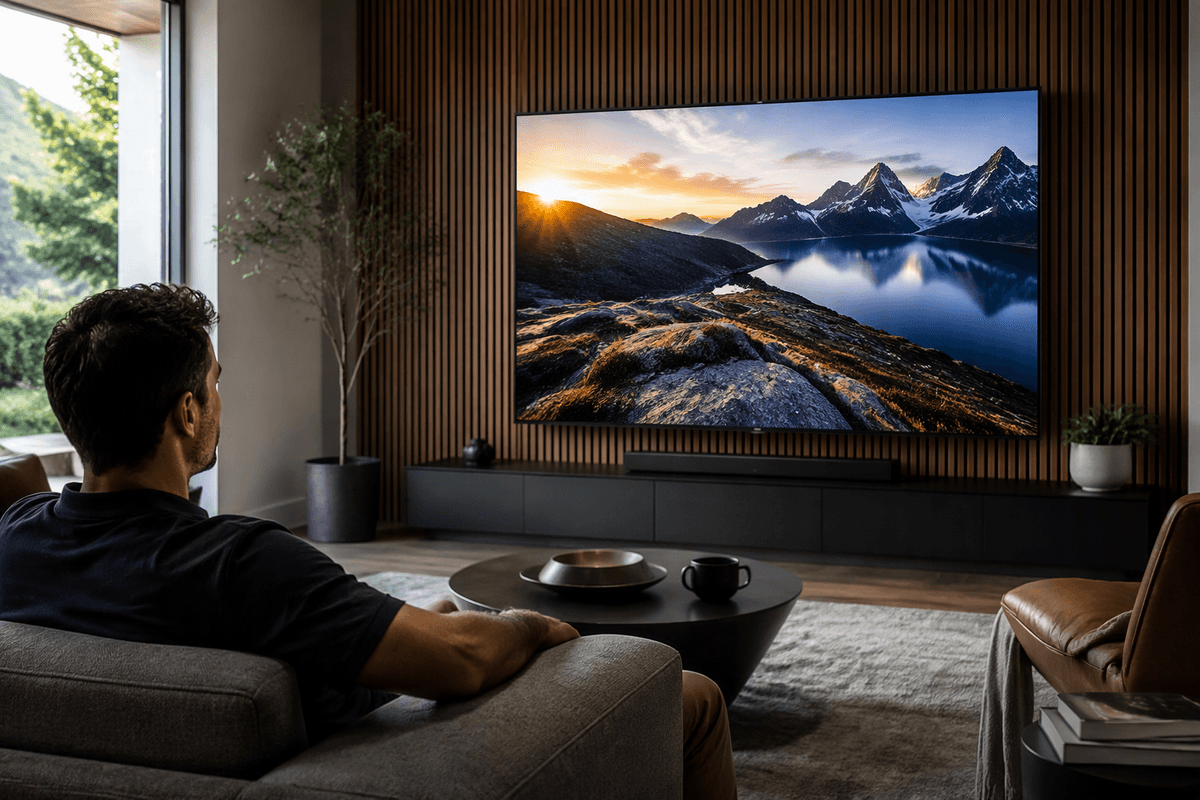
You’ll notice it immediately at home: a TV that’s a little too small gets “used to” fast, while a TV that’s too big can make subtitles and fast cuts feel tiring. A practical starting point is to match size to where your eyes will be most of the time, not where the couch sits on a good day. For most living rooms, people land in the 55–75 inch range because it fills your field of view without forcing you to scan the screen.
Then confirm it physically fits before you fall in love with a model. Measure the stand or wall space, the TV’s width (not just the diagonal), and where cables and power will route. If you’re using the included feet, check their spacing; some TVs need a wide console. Wall-mounting adds cost, plus the hassle of finding studs and hiding wires.
Picture quality: the few specs that truly change it
You’ll see the biggest picture-quality differences from three things: panel type, real brightness, and glare handling. OLED is the cleanest for dark-room movies because blacks are truly black and contrast stays strong from most seats. The trade-off is cost, and in a very bright room an average OLED can look less punchy than a good LED/LCD. For LED/LCD, pay attention to local dimming (full-array beats edge-lit) because it controls blooming around subtitles and highlights.
Skip “8K” as a deciding factor for most people; you’re still watching mostly 4K and 1080p, and upscaling varies by brand. Instead, look for measured peak brightness for HDR and how it holds up in real scenes, not just a spec sheet. If your room has windows, prioritize an effective anti-reflection coating and higher sustained brightness. These upgrades cost money, but they’re the ones you notice every day.
HDR and motion: when “more” stops looking better
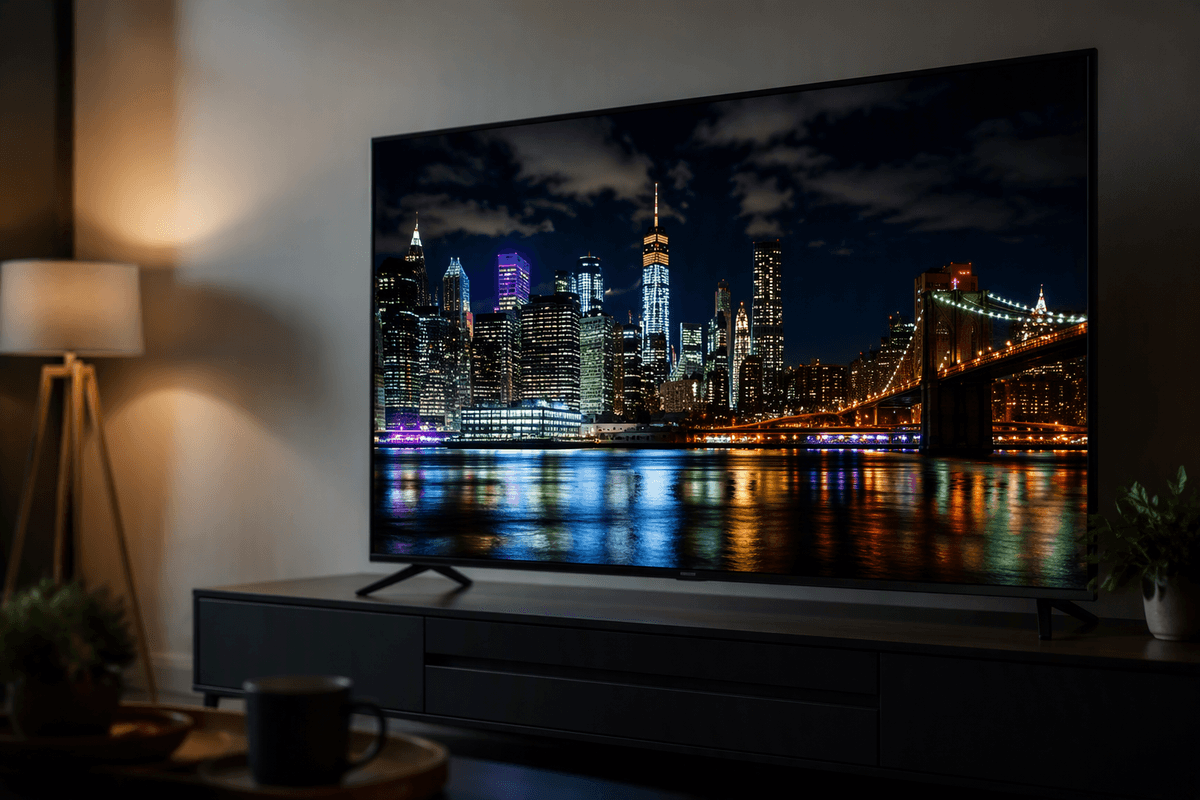
HDR is where marketing gets loud: HDR10, Dolby Vision, HDR10+, “1,000 nits,” and more. The reality is simple—HDR only looks better when the TV can get bright enough in real scenes and still keep dark areas dark. If a set is dim, HDR often turns into a slightly darker picture with clipped highlights, so you’ll end up switching to a brighter preset anyway. Prioritize solid real-world brightness and local dimming (or OLED’s contrast) over collecting HDR logos, and treat Dolby Vision as a nice-to-have rather than a requirement.
Motion is similar: a “120Hz” panel can help sports and gaming, but cranking motion smoothing usually creates soap-opera effects and visual artifacts around players or text. A practical approach is to keep motion interpolation low or off for movies, then use a mild setting for sports if you notice blur. Better motion processing costs more, and it’s not equally good across brands.
Smart TV software: apps, speed, updates, and privacy
You’ll interact with the smart TV software every day, and it can matter more than one extra HDR badge. Start with the boring check: does it reliably run the apps you actually use (Netflix, YouTube, Hulu, Max, Disney+, Prime Video, Apple TV), and do they get updates on that platform? A gorgeous panel doesn’t help if the TV is missing your live-TV streaming app or it gets dropped a few years in.
Speed is the other tell. In stores, click around: app launches, switching inputs, and voice search should feel immediate, not “wait and hope.” Cheaper models often cut corners on processors and memory, which shows up as laggy menus over time. Privacy is the trade-off. Many TVs collect viewing and device data by default; plan to turn off ad tracking, limit microphone wake features, and consider using an external streamer if you want longer software support with fewer prompts.
Gaming and sports check: ports, latency, and HDMI 2.1
If you play on a modern console or watch a lot of sports, inputs and responsiveness matter as much as panel type. Count your HDMI devices first (console, cable box, soundbar, streamer), then look for enough ports so you’re not constantly swapping cables. For gaming, prioritize low input lag in “Game Mode” and support for VRR (variable refresh rate) so fast camera pans don’t tear or stutter. If you own a PlayStation 5 or Xbox Series X, HDMI 2.1 features like 4K at 120Hz can be worth paying for, but only if the TV has at least one full-bandwidth HDMI 2.1 port.
For sports, a true 120Hz panel can reduce blur, but the bigger win is clean motion without aggressive smoothing. The practical catch: the best gaming modes sometimes reduce local dimming or picture processing, so compare how the TV looks in Game Mode, not just in its showroom preset.
Sound and setup: plan for a soundbar early
You’ll forgive an average picture faster than you’ll forgive muddy dialogue. Most thin TVs have small downward- or rear-firing speakers, so voices get lost once you add a ceiling fan, open kitchen noise, or action-heavy shows. Planning for a soundbar early is less about “audiophile” sound and more about predictable clarity at a reasonable volume.
Start by deciding how you’ll connect it. If the TV and soundbar both support HDMI eARC, use that; it’s the cleanest way to control volume with one remote and pass higher-quality audio. If you’re stuck with optical, it still works, but you may lose some formats and run into lip-sync tweaks. Budget for the practical stuff: a longer HDMI cable, a mount or shelf that doesn’t block the TV’s IR sensor, and enough clearance so the bar doesn’t cover the bottom of the screen on its stand.
Pricing, deals, and longevity: buy once, not twice
You’ll see big price swings on the same TV, so decide what you’re willing to pay for the upgrades you’ll actually notice: better local dimming or OLED contrast, higher real HDR brightness, a true 120Hz panel, and enough HDMI 2.1 ports. If a “deal” only adds a thinner bezel or a marketing refresh-rate number, it’s not really saving you money.
Longevity is where cheap models get expensive. Slower processors age into laggy menus, and budget sets may stop getting app updates sooner, pushing you toward an external streamer. Also budget for the full setup—mount, cables, and a soundbar—so you don’t end up “fixing” the purchase with a second purchase.