Why typos feel permanent—and when they aren’t
You hit send, notice the typo, and your brain treats it like it’s carved into stone. That feeling made sense for years because most texts really were “send-and-done.” The wrinkle is that not all iPhone messages are the same anymore, and that changes what you can fix after the fact.
If your message is an iMessage (blue bubble) and both phones support newer iOS features, you may be able to edit it or unsend it within a short time window. If it’s a regular SMS/MMS text (green bubble), those tools usually won’t exist, and the best move is quick damage control. A practical constraint: even when editing works, the other person may still see that a change happened.
First check: iMessage vs SMS changes everything
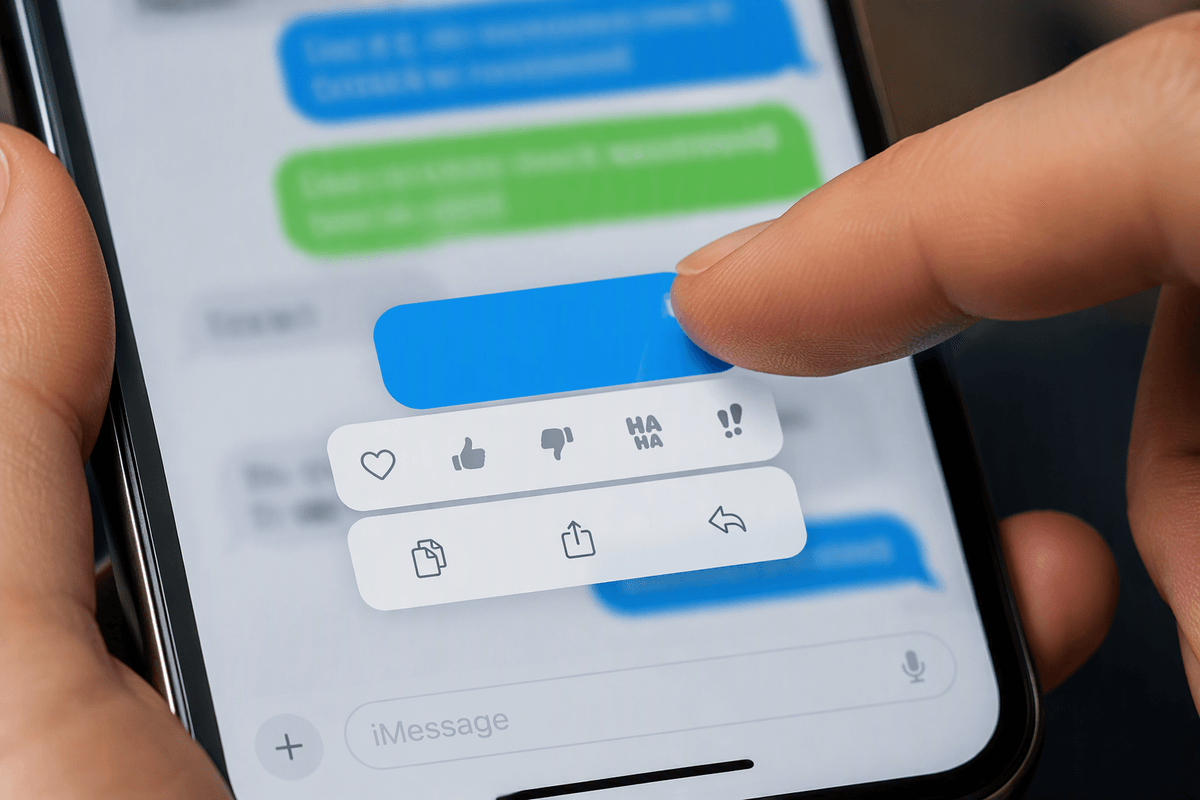
The fastest way to know what you can fix is the bubble color in Messages. Blue means iMessage, which travels through Apple’s service and can support “Edit” and “Undo Send” on newer iOS versions. Green means SMS/MMS, which goes through your carrier like a traditional text. Once a green message leaves your phone, there’s typically no built-in way to pull it back or change it on the other person’s device.
Color isn’t the only clue, though. If either you or the recipient is on an older iOS version, iMessage edits may not behave the way you expect. And if your phone loses data and “Send as SMS” is enabled, a message you thought would be blue can flip to green at the last second. Before you panic, press and hold the sent message—if “Edit” or “Undo Send” appears, you’re in iMessage territory.
Edit a sent iMessage before the clock runs out
You’ll notice the mistake right after sending: a wrong time, a misspelled name, or the classic “can you pick me up at 8” when you meant 6. If the bubble is blue and your iPhone is on iOS 16 or later, you can often fix it without starting a new thread. Press and hold the message you sent, tap “Edit,” make your correction, then tap the checkmark to resend the updated version.
The catch is the clock. Apple only allows editing for a limited window after you send (it’s short enough that you should assume you have minutes, not hours). If you don’t see “Edit,” it’s usually because the window expired, the message wasn’t actually iMessage, or your phone or the recipient’s device can’t fully support the feature. Another practical limitation: editing isn’t free of friction—if you’re correcting multiple messages, you have to edit them one by one, and it can take longer than simply sending a quick correction.
Unsend an iMessage when you sent the wrong thing
Sometimes editing isn’t enough. You sent the message to the wrong person, attached the wrong photo, or fired off something that shouldn’t stay in the thread at all. If it’s a blue-bubble iMessage and you’re still within the short window Apple allows, you can try to remove it entirely. Press and hold the message, tap “Undo Send,” and it should disappear from your side of the conversation.
Two real-world constraints matter. First, the undo window is even more time-sensitive than most people expect, so don’t hunt through settings—act fast. Second, “Undo Send” isn’t a magic eraser if the other phone can’t fully support it. If the recipient is on an older iOS version, they may still see the message content (or it may arrive as a separate follow-up), even if it vanishes for you. If “Undo Send” doesn’t appear in the menu, assume you’re past the window or the message wasn’t eligible.
What the other person actually sees after changes
The confusing part is that “edited” and “unsent” aren’t invisible. On a supported iPhone, an edited iMessage updates in place, but it typically shows an “Edited” label, and the recipient can tap to view the edit history. That means a quick fix works great for typos and wrong times, but it’s not ideal for changing the meaning of something you already said—people can see you changed it.
With “Undo Send,” the best-case outcome is the message disappears and the other person sees a notice that a message was unsent. Two practical wrinkles: notifications can still give the game away (a lock-screen preview may show the original text even if you unsend quickly), and older iOS versions may not fully respect the removal, so the message content can still be visible on their device. If the stakes are high, assume they might have seen it and respond accordingly.
When you can’t edit or unsend: fast damage control

You’ll run into moments where “Edit” and “Undo Send” simply aren’t options: the bubble is green, the time window is gone, the recipient’s iOS is older, or the message already popped up in a notification preview. At that point, the goal changes from “erase it” to “reduce confusion fast.” If the mistake is factual (time, address, meeting link), send a short correction that stands on its own: “Correction: 6pm (not 8). Sorry—typo.” Don’t bury the fix in extra explanation, because people often skim and only catch the last line.
If you sent something to the wrong person, a quick “That wasn’t meant for you—please ignore” is usually better than trying to pretend it didn’t happen. For photos or sensitive details, follow up with a call if you can—voice is faster, and it lowers the chance of a screenshot becoming the “record.” A practical limitation: you can’t control what someone already saw or saved, so avoid sending more details while you’re trying to contain the original mistake.
When it’s awkward rather than high-stakes, a simple apology plus the corrected message is enough. Most threads move on quickly if you make it easy to do the right thing.
A quick decision guide for fixing mistakes confidently
You notice the mistake: look at the bubble. Blue means you might be able to fix it; green means you’re almost always in “follow-up correction” mode.
If it’s blue, press and hold the message immediately. If you see “Edit,” use it for typos, wrong times, or small clarifications (assume the other person can see it was edited). If you see “Undo Send,” use it for wrong recipients, wrong photos, or anything you don’t want in the thread at all (assume they may have seen a notification preview anyway). If neither option appears, send a clean correction that can be read in one glance, or call if it’s sensitive.