Why your iPad icons suddenly look too small
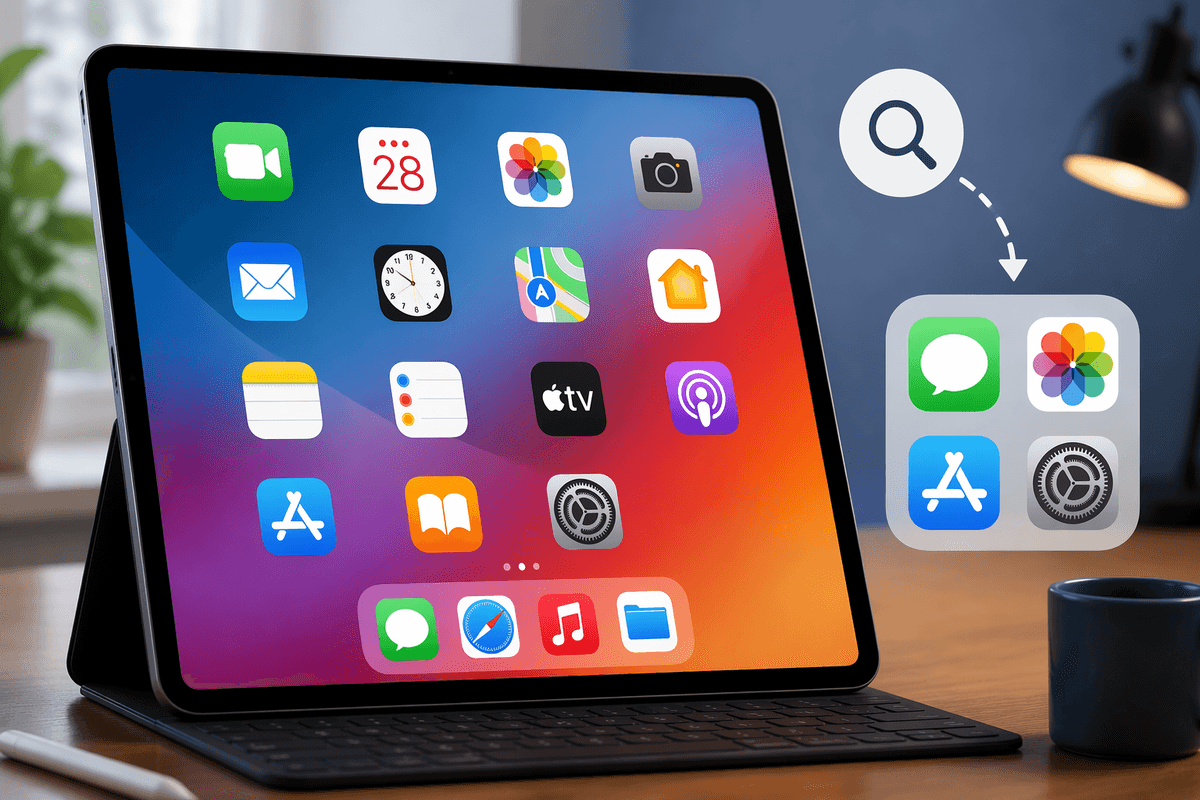
You open your iPad and the Home Screen suddenly feels “zoomed out”—icons look smaller, labels feel tighter, and taps that used to be easy start missing. This usually happens after a settings change that affects scaling or layout, even if you didn’t touch anything labeled “icon size.” A new Home Screen layout, a Display Zoom switch, connecting an external display, or turning on Stage Manager can all make the interface prioritize fitting more on screen instead of making elements easier to see.
The tricky part is that iPadOS spreads these controls across different menus, and some changes affect the whole system while others only affect the Home Screen. Making icons bigger often means giving up a bit of space for widgets or extra app rows, so the “right” fix depends on whether you want readability first or maximum apps per page.
Check the obvious: Home Screen layout and icon size settings
The fastest place to check is the Home Screen itself, because iPadOS can switch layouts without it being obvious. Press and hold on an empty area of the Home Screen, tap Edit, then choose Customize (or Home Screen settings if you see it). Look for anything that sounds like fitting “More” on the screen—extra rows, denser spacing, or a layout that favors more apps per page. Those options make icons and labels look smaller.
Also check Settings > Home Screen & App Library. If you’ve recently changed how new apps appear (Home Screen vs. App Library), or you turned on more notification badges and widget stacks, your Home Screen can feel visually busier even when icon size hasn’t changed. The trade-off is simple: layouts that show more apps and widgets at once usually reduce icon size and breathing room, which is tougher to tap accurately at arm’s length.
Display zoom, text size, and why they don’t always match
A common surprise is that you can make text bigger and still feel like icons are tiny. Text size (Settings > Display & Brightness > Text Size, or Settings > Accessibility > Display & Text Size > Larger Text) mostly affects labels, menus, and apps that support Dynamic Type. Your Home Screen icons may barely change, so the screen can look “off,” with large headings and small app tiles.
Display Zoom is the setting that changes overall scaling more consistently, but it isn’t offered on every iPad model or in every configuration. If your iPad supports it, look in Settings > Display & Brightness for Display Zoom and pick the option that makes items appear larger. The cost is space: you’ll usually see fewer items on screen, and some apps show less content at once.
If icons look tiny only in certain apps or modes
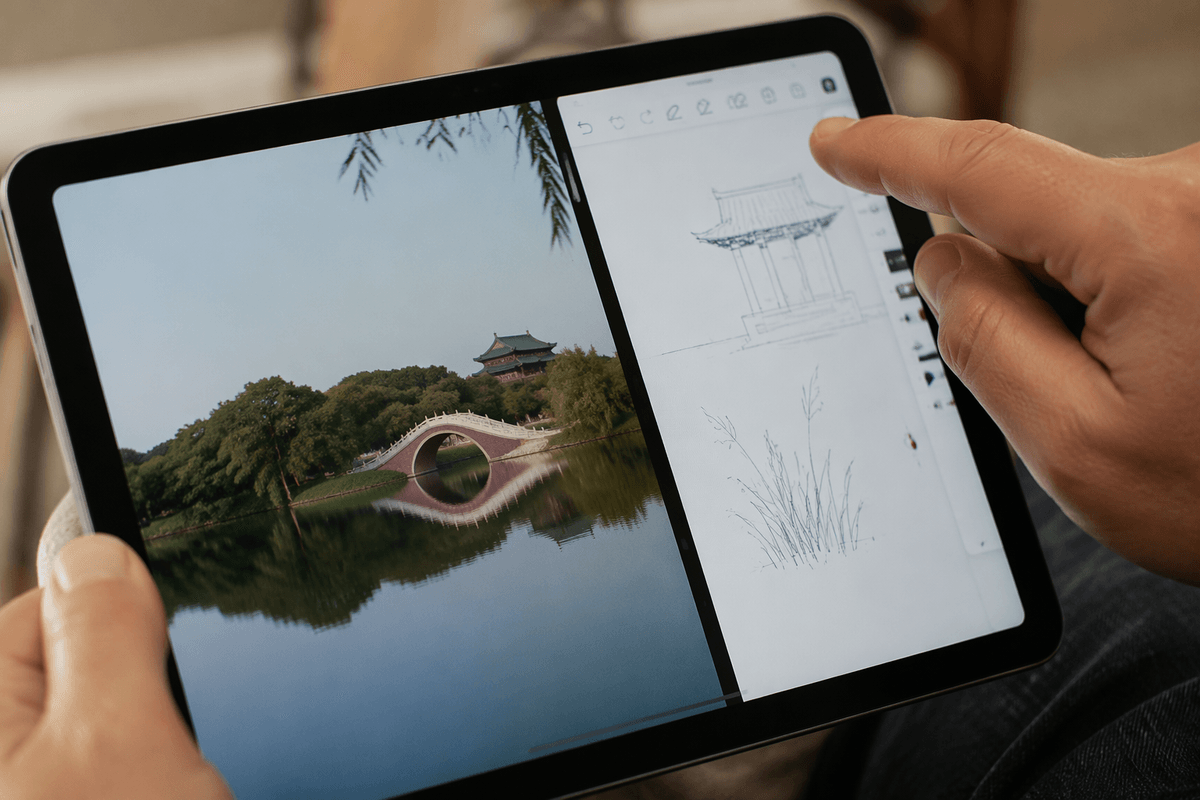
Sometimes the Home Screen looks fine, but icons or controls feel tiny only in a specific app, in Split View, or when you rotate the iPad. That’s usually because the app is choosing a denser layout at certain sizes, or iPadOS is giving it less room. A quick test is to open the same app full screen, then in Split View or Slide Over, and see if the buttons shrink only when the window gets narrow. Many apps switch to “compact” toolbars that pack in more icons, which can be harder to hit.
Also check per-app text controls: Settings > Accessibility > Per-App Settings lets you force Larger Text (and a few other display tweaks) for one app without changing the whole system. Not every app responds well, though. You may see clipped labels, tighter spacing, or screens that require more scrolling once everything scales up.
External displays and Stage Manager can shrink everything
If your iPad looks fine on its own but suddenly feels “mini” when you dock it, connect a monitor, or use Stage Manager, you’re not imagining it. External displays often run at a high resolution, and iPadOS tries to fit more on screen—so Home Screen icons, app toolbars, and text can all appear smaller than they do on the built-in display.
Start by checking whether Stage Manager is on: open Control Center, tap the Stage Manager button, and toggle it off to compare. If you want Stage Manager, try making the current app window larger (or reducing how many windows are visible) and see if controls become easier to hit. Also look for display scaling options on the external monitor itself—some monitors default to a sharp, “more space” mode that makes everything tiny. The trade-off is real: scaling up improves readability, but you’ll lose desktop-like space for multiple windows.
Accessibility options that can make icons easier to hit
If you’re already near your preferred layout but taps still feel fiddly, Accessibility can help without forcing a full “zoomed in” look. Start with Settings > Accessibility > Touch > Touch Accommodations. Turning it on lets you require a slightly longer touch or adjust how taps are registered, which can cut down on accidental misses when icons are small. It takes a little time to get used to, and setting it too aggressively can make the iPad feel laggy.
Then check Settings > Accessibility > Display & Text Size. Bold Text and Increase Contrast don’t enlarge icons, but they make labels and edges easier to pick out at a distance. If the main issue is hitting small controls inside apps, Zoom (Accessibility > Zoom) is the blunt but reliable tool—great for quick “read and tap” moments, but it adds an extra gesture layer you may not want all day.
When settings don’t stick: quick resets and last resorts
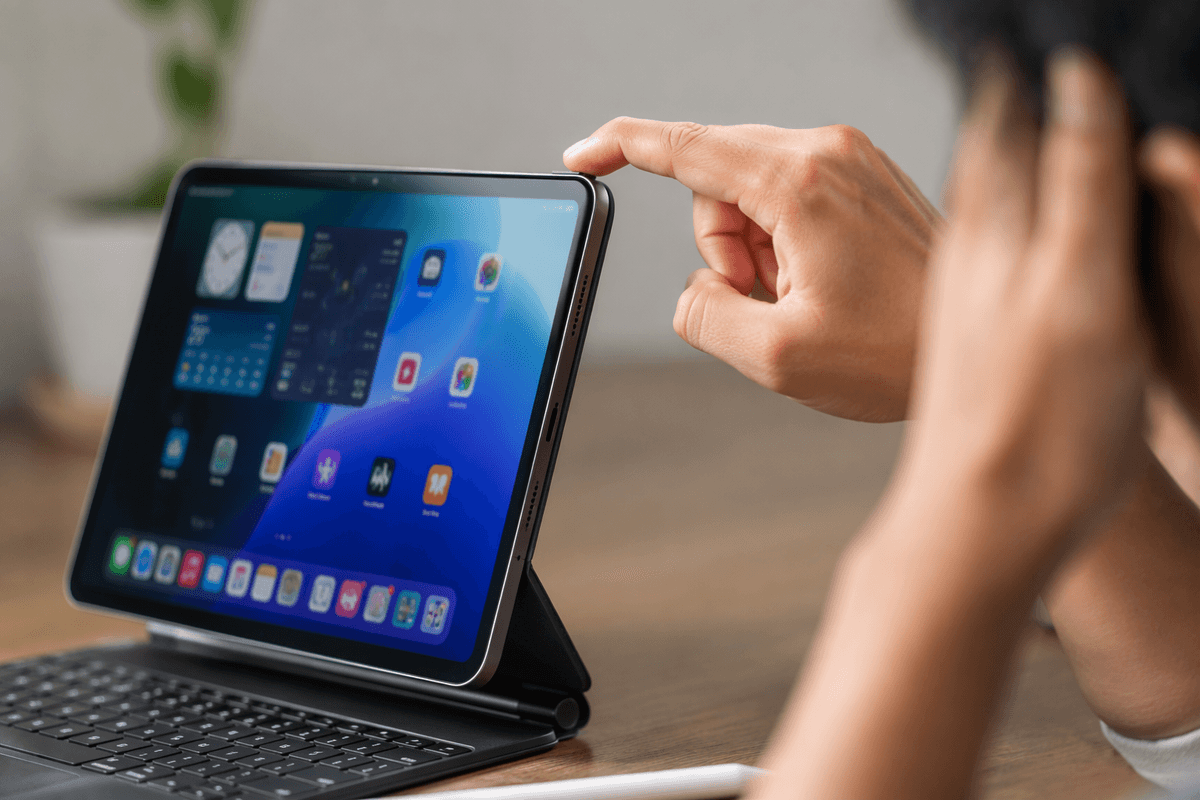
You change a layout or a display option, it looks better, then a day later the icons feel tiny again. This usually happens when you’re switching between setups—undocking from a monitor, turning Stage Manager on/off, or rotating while an app is in a windowed state—and iPadOS re-applies a “more space” style automatically. The quickest way to force a clean refresh is a restart: power off fully, wait 10 seconds, and power back on. It sounds basic, but it clears a surprising number of stubborn scaling glitches.
If the behavior keeps returning, try toggling the exact setting that controls the scale (for example, Stage Manager in Control Center, or Display Zoom if your model supports it) and leave it off for a full minute before turning it back on. For a true last resort, back up your iPad, then use Settings > General > Transfer or Reset iPad > Reset > Reset All Settings. You’ll keep your apps and data, but you’ll lose Wi‑Fi networks, wallpaper, and a lot of preferences.
A simple checklist to get comfortable icon sizing again
If you want a fast, reliable pass: (1) On the Home Screen, press and hold an empty area > Edit > Customize, and choose the “larger”/less-dense layout. (2) Settings > Display & Brightness: check Display Zoom (if available) and Text Size. (3) If it’s only one app, Settings > Accessibility > Per-App Settings > Larger Text. (4) If you use a monitor, disconnect it once and compare; then toggle Stage Manager in Control Center. (5) For missed taps, try Accessibility > Touch > Touch Accommodations. If things still flip back, restart before you reset settings.