Start with the obvious: volume, mute, and output device
The fastest fixes are the ones you can see. Turn the volume up using the keyboard keys, then check the on-screen volume slider to confirm it actually changed. Make sure the laptop isn’t muted (some keyboards have a separate mute key), and if you’re using headphones or a USB-C dock, unplug them—many laptops automatically switch audio away from the internal speakers.
Now confirm the output device. Open your sound/volume menu and look for the selected playback device; it should say something like “Speakers” or “Internal Speakers,” not HDMI, Bluetooth earbuds, a monitor, or a headset. For calls, check the app too (Zoom/Teams/Meet can override system audio). If the right device is selected and the level is high but you still hear nothing, that’s a useful clue for the next steps.
Figure out what kind of failure it is: no sound, distorted, or one side
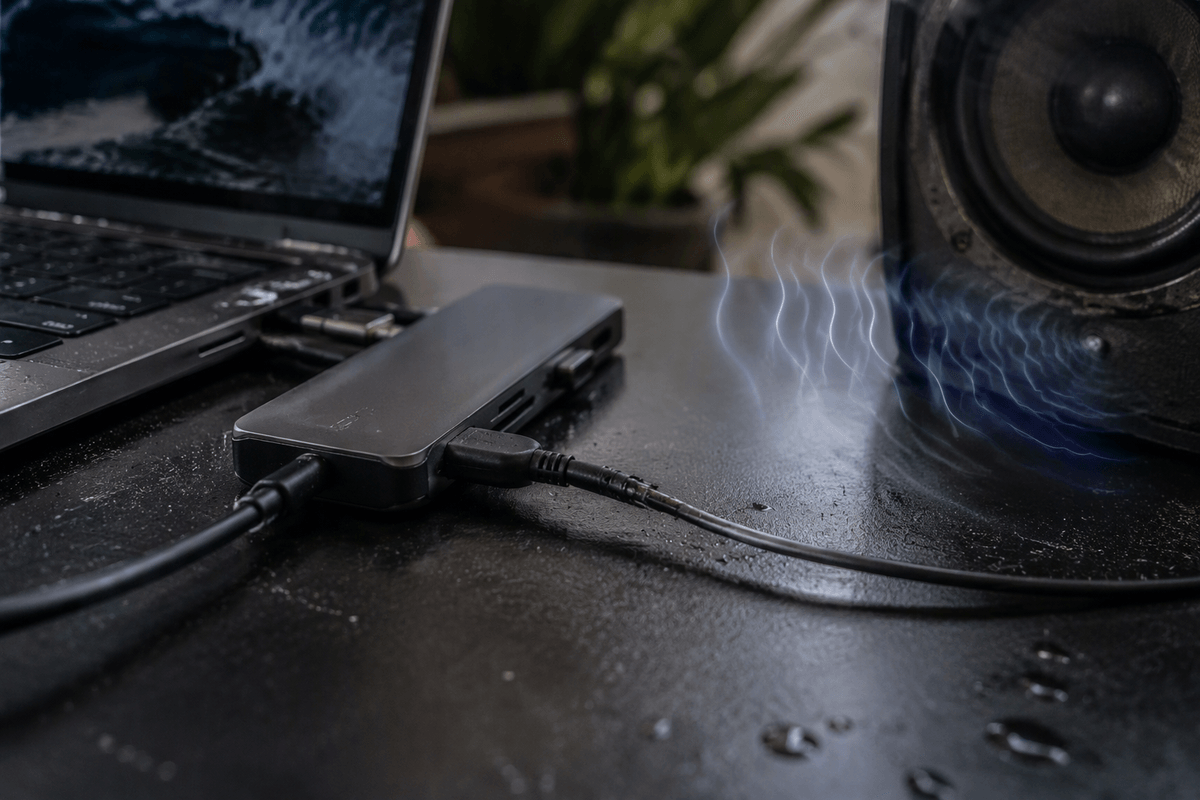
If sound is still missing, listen for what kind of “failure” you have—it narrows the cause fast. If there’s absolutely no audio (no startup chime, no notification ping, nothing in any app), that often points to the wrong output device still being selected, an OS-level setting, or a driver issue. If audio is present but distorted, crackly, or “underwater,” suspect a bad connection in the audio path (dock/adapter), an aggressive audio enhancement, or physical damage from drops, dust, or liquid. If you only hear the left or right speaker, it could be a balance setting, a mono/accessibility option, or a partially failed speaker.
Use a simple, consistent test: play a short system sound and a YouTube video, then adjust volume and balance while it plays. Take note of what changes and what doesn’t—you’ll use that evidence in the next steps.
Test with a known-good source and isolate the problem
Pick one “known-good” audio source so you’re not chasing an app problem. The simplest is a built-in system sound: on Windows, use the Sound settings “Test” button; on a Mac, move the output volume slider and listen for the key-click/alert (or play a short file in QuickTime). If system sounds work but YouTube/Spotify/Zoom doesn’t, the issue is likely inside that app (its output device, mute, or permissions), not your speakers.
Then isolate by removing variables. Disconnect USB headsets, docks, monitors (HDMI/DisplayPort), and Bluetooth devices, and reboot once with only the laptop. Test again. If sound returns, add devices back one at a time until it breaks—this pinpoints the trigger. It’s a little tedious, but it’s faster than random settings changes and avoids paying for repairs you don’t need.
Fix common Windows sound settings that block speakers
You’ll often find the problem in Windows settings even when “Speakers” looks selected. Go to Settings > System > Sound. Under Output, pick your internal speakers, then click Device properties and confirm it isn’t muted and the volume is up. Click “Test” there; if the test tone is silent, Windows still isn’t getting audio to the device.
Now check the two common blockers. First, open Volume mixer and make sure the app you’re using (browser, Zoom, Teams) isn’t turned down or muted, and that its output device matches your speakers. Second, go to Sound > More sound settings, open the Playback tab, select Speakers, and click Set Default. In Properties, check Levels (not muted), Balance (both sides up), and Enhancements/Advanced—temporarily disable enhancements and turn off “Allow applications to take exclusive control.” These changes can reduce audio “features,” but they’re a quick way to rule out a software mute.
Fix common macOS sound settings that stop internal audio
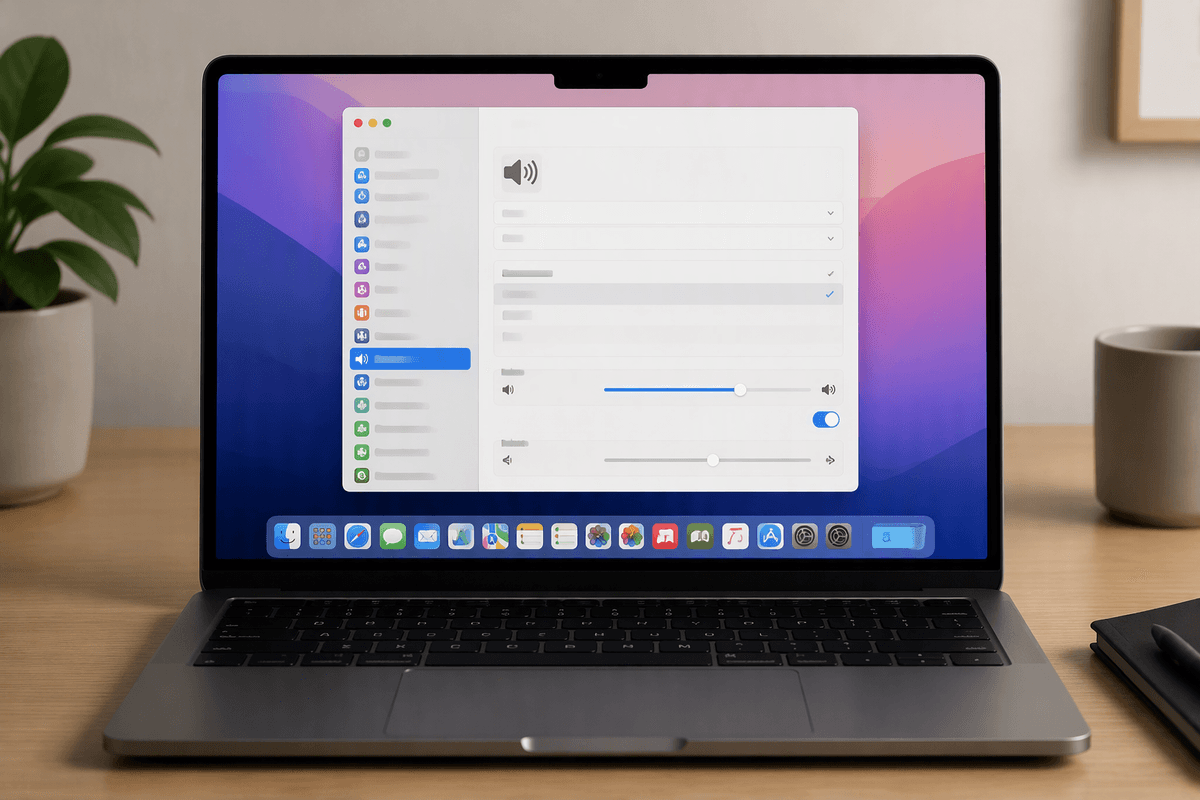
You can have “Internal Speakers” selected on a Mac and still get silence because of one hidden setting or a stuck audio route. Open System Settings > Sound (or Sound & Haptics). Under Output, choose Internal Speakers and raise the Output volume; make sure Mute isn’t checked. If you only hear one side, adjust the Balance slider back to the middle.
Now remove the usual Mac-specific detours. Turn Bluetooth off briefly to force audio away from earbuds. Unplug any USB-C/Thunderbolt docks, HDMI monitors, or audio interfaces, then test again—macOS will happily keep sending sound to a display you aren’t listening to. If you’re on a call, open the app’s Audio settings and confirm the speaker output matches Internal Speakers (apps can override the system choice). If it still won’t play, restart once; it’s a low-cost reset before you start chasing deeper update or hardware issues.
Drivers and updates: when software is the real culprit
If everything looks right but Windows’ test tone is still silent (or the sound is suddenly distorted after an update), treat it like a driver problem. Restart first, then go to Device Manager > Sound, video and game controllers, right-click your audio device, and try Update driver. If the trouble started recently, use Properties > Driver > Roll Back Driver (often faster than hunting settings). If rollback isn’t available, uninstall the device (check “Delete the driver” only if you’re comfortable), reboot, and let Windows reinstall it. Also run Windows Update, including “Optional updates,” because audio drivers often land there.
On macOS, drivers are bundled with system updates, so the practical move is to install the latest macOS update and reboot. If the issue began right after updating, test in Safe Mode to see if a login item or audio utility is interfering. Updates take time and can force a restart, so plan it between meetings.
When it’s likely hardware: ports, water, blown speakers, and repair choices
Sometimes the clues point away from settings and toward hardware. If the laptop plays audio through Bluetooth headphones but never through the built-in speakers—even after reboots, test tones, and driver resets—the internal speaker path may be failing. A common giveaway is a “stuck” headphone jack: if the port is bent, dirty, or had a plug yanked sideways, the laptop can think headphones are always connected. Gently inspect the jack for debris; don’t jam tools inside.
Liquid exposure is another red flag: muffled, crackly sound or sudden silence after a spill can mean corrosion, even if the keyboard still works. Blown speakers usually sound raspy at low volume and get worse as you turn it up. At that point, an external USB speaker/headset is the fastest workaround, and a repair is a cost decision—quotes vary, and speaker replacement can require opening the whole bottom case.
A simple checklist to get sound back—and know when to stop
Run this quick checklist in order: (1) Volume up, not muted, and “Speakers/Internal Speakers” selected. (2) Disconnect all audio routes (Bluetooth, HDMI/monitor, docks, USB headsets), then reboot once and re-test with the OS “Test” tone. (3) If system sounds work but an app doesn’t, fix the app’s output/mute/permissions and its volume in the mixer. (4) Windows: set Speakers as default, disable enhancements/exclusive mode, then update or roll back the audio driver. (5) macOS: confirm Internal Speakers, toggle Bluetooth off, unplug docks, update macOS. Stop when test tones stay silent or sound is crackly after a spill—use external audio and get a repair quote.