Getting ready: what you need before pairing
You can usually avoid most pairing headaches by doing a quick setup check first. Put your phone and the speaker within a few feet of each other, and turn both on. If the speaker has a low-battery tone or blinking red light, charge it for 10–15 minutes before you try—many speakers act flaky when the battery is nearly empty. If you’ve paired the speaker to another phone, tablet, TV, or laptop before, that device may “steal” the connection, so turn Bluetooth off on nearby devices for a minute. Also, plan to stay within about 10–20 feet during setup; walls and pockets can reduce range.
Check compatibility, charge levels, and Bluetooth basics
It helps to confirm you’re not fighting a basic mismatch. Nearly all modern phones support Bluetooth audio, but some older speakers only handle music (not calls), and a few “party” speakers want you to use their app for certain features. If your speaker has a model name on the back, make sure it’s a Bluetooth speaker (not Wi‑Fi-only/AirPlay/Chromecast-only) and that your phone’s Bluetooth is turned on.
Before you pair, check power on both sides. A speaker that “turns on” but is undercharged may appear in the list and then drop instantly, so give it a real charge if you see any low-battery warning. On your phone, toggle Bluetooth off and back on once, and keep the Bluetooth settings screen open so it can scan continuously. If you don’t see the speaker within 30–60 seconds, move closer and try again.
Put the speaker in pairing mode the right way
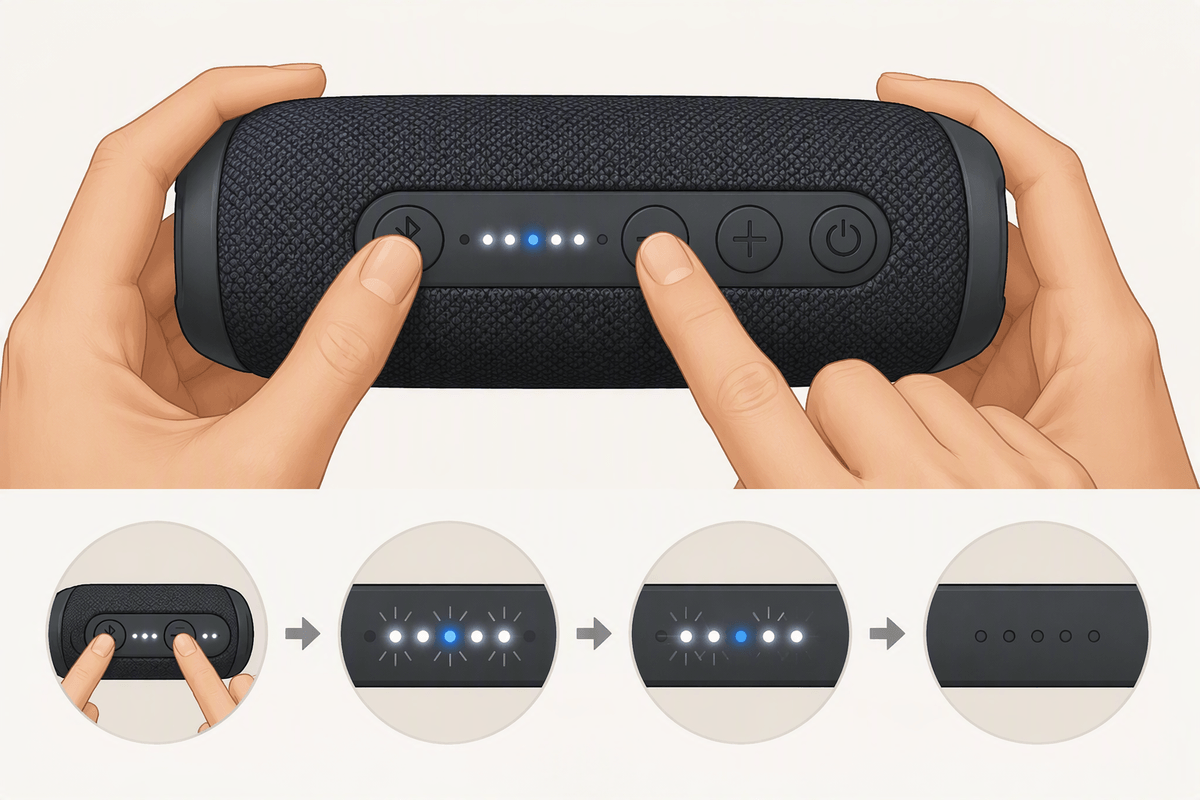
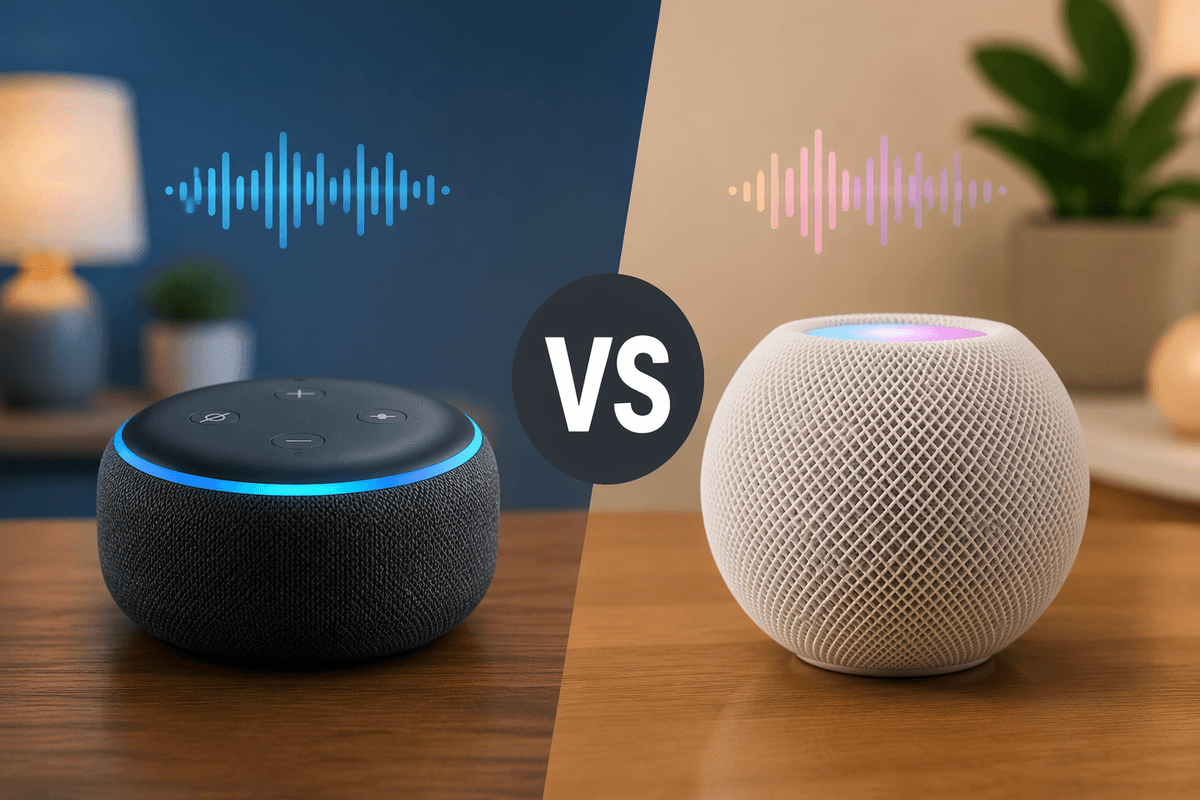
Most speakers won’t show up on your phone until they’re in pairing mode, which is different from just being powered on. Look for a dedicated Bluetooth button (often marked with the Bluetooth symbol) and press and hold it for about 2–5 seconds until you hear a tone or the light starts flashing in a steady pattern. Some speakers use the Power button instead—press and hold until it says “pairing” or the LED changes. If the speaker says “connected” right away, it’s probably grabbing an old device; temporarily turn Bluetooth off on that other device, or use the speaker’s “Bluetooth” button to cycle to a new connection.
If it still won’t enter pairing mode, clear its memory. Many models have a reset/clear pairing combo like holding Bluetooth + Volume Down for 5–10 seconds. The exact buttons vary, and you may lose saved devices, but it often fixes “not discoverable” problems immediately.
Connect on iPhone: where to tap and what to expect
With the speaker flashing in pairing mode, open Settings on your iPhone, tap Bluetooth, and make sure Bluetooth is switched on. Keep this screen open. Under Other Devices, you should see the speaker’s name (sometimes it’s the model number). Tap it once and wait—most speakers will change to “Connected,” and the iPhone will move it up to My Devices. If you get a pairing request or PIN, try 0000 or 1234 (many speakers don’t ask at all).
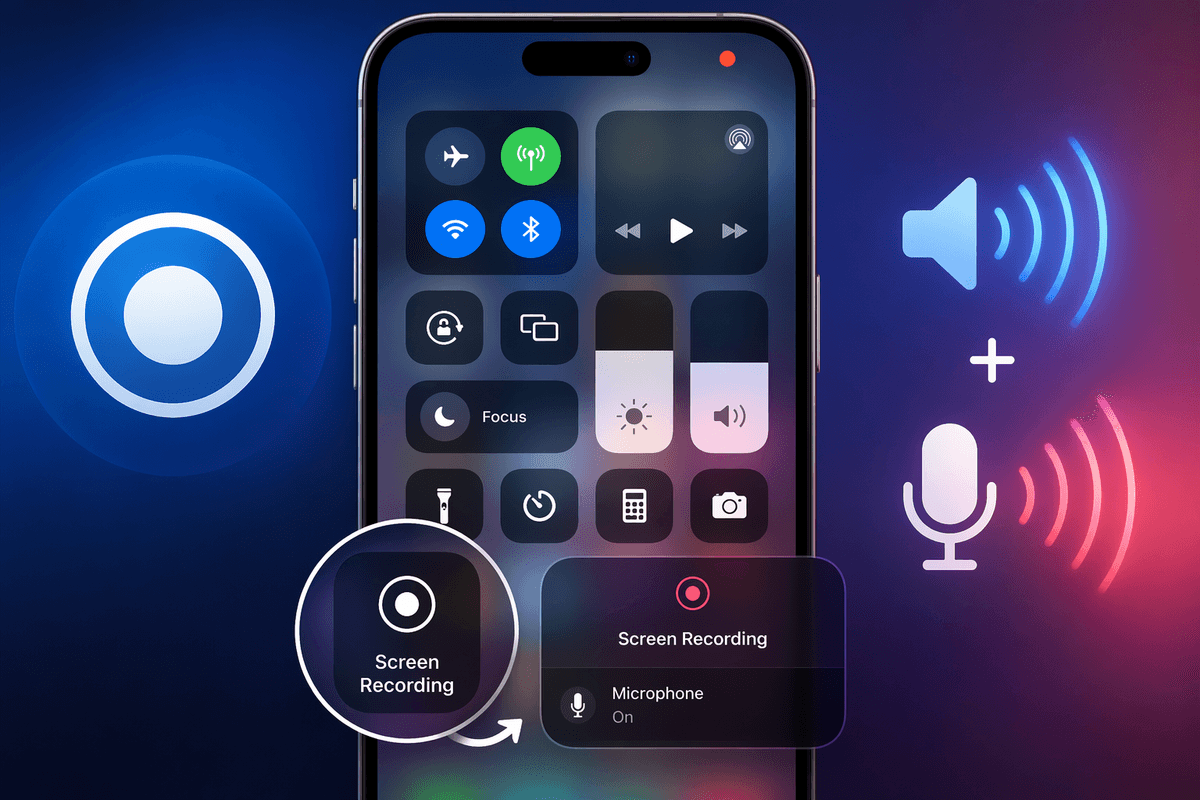
After it connects, confirm audio is actually going to the speaker. Start music, then open Control Center and tap the AirPlay/audio output button (the triangle with circles) and select the speaker; for calls, the speaker icon on the call screen lets you choose Bluetooth. If the speaker never appears, toggle Bluetooth off/on, or tap the info icon next to the speaker name and choose Forget This Device, then re-pair. Pairing can fail if you’re too far away or the speaker battery is low, so stay close and plug it in if needed.
Connect on Android: pairing, permissions, and audio output
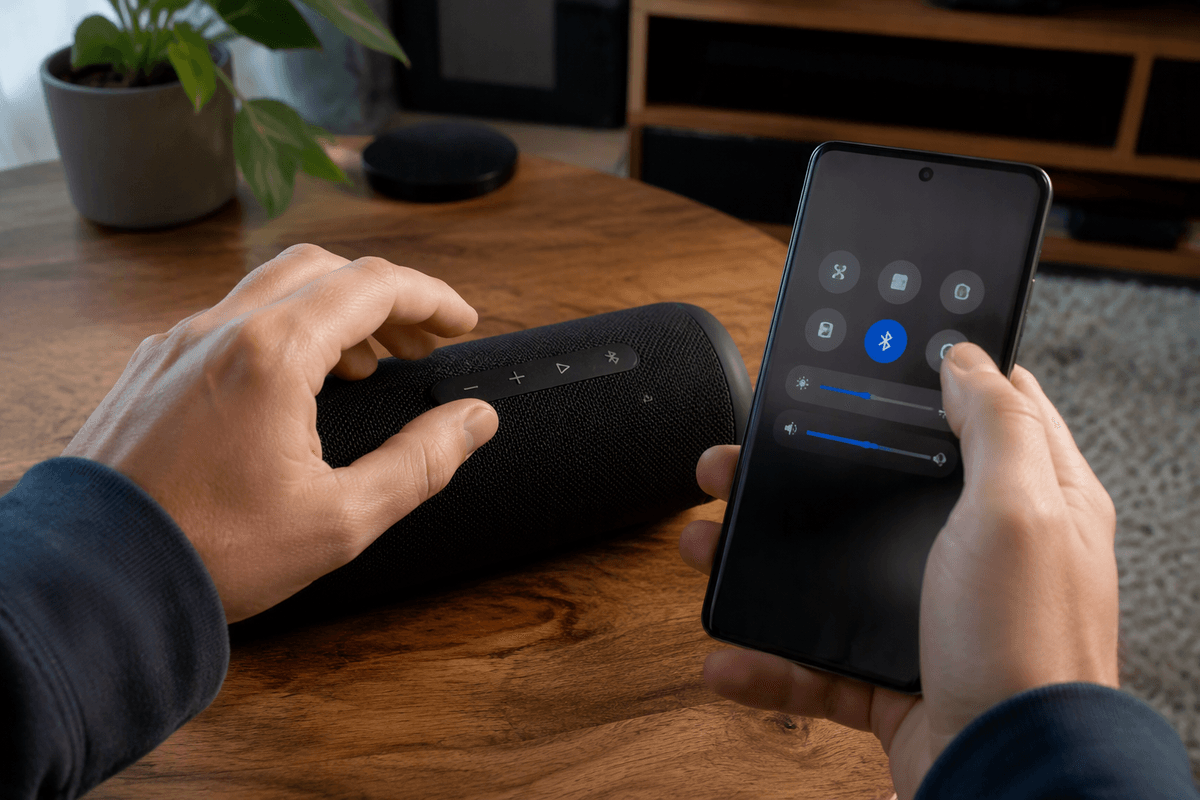
On Android, start with the speaker flashing in pairing mode, then open Settings > Connected devices (or Connections) > Bluetooth and turn Bluetooth on. Leave that screen open so it keeps scanning. Tap Pair new device (wording varies), then tap your speaker’s name when it appears. If you get a PIN prompt, try 0000 or 1234. Some phones also pop a permission request (for example, to access contacts or call audio); you can usually deny contact access and still play music, but allow the Bluetooth connection itself.
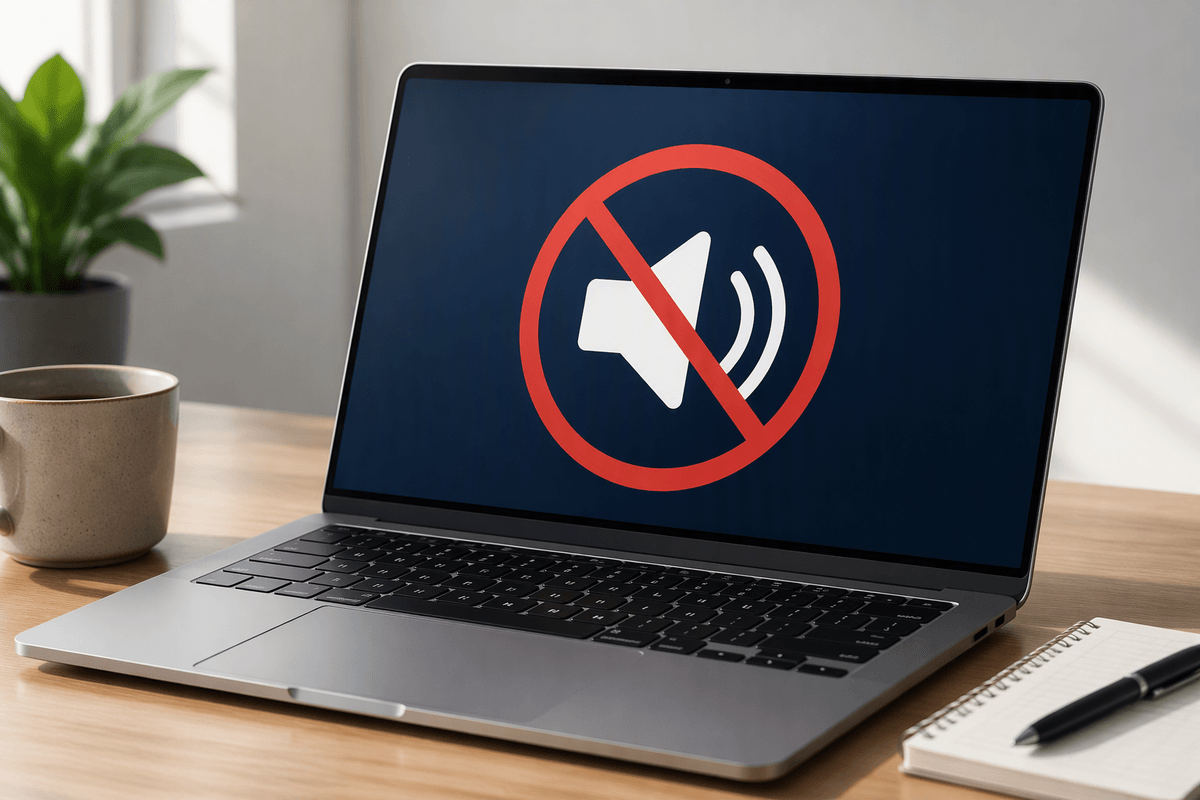
Once it says “Connected,” check that sound is routed correctly. Play audio, open the quick settings panel, and tap the media output/device button to select the speaker; on some models you’ll find it under Media output. If it connects but stays silent, raise the speaker volume, turn off Do Not Disturb, and make sure the speaker is set for “media” (not just “calls”). If the wrong device keeps grabbing the connection, use Bluetooth settings to disconnect it or “Forget” the speaker and re-pair from scratch.
When it won’t connect: quick fixes that usually work
You’ll recognize the common failure modes: the speaker never shows up, it shows up but won’t pair, or it pairs and then immediately drops. Start with the fastest reset on the phone side: turn Bluetooth off, wait 10 seconds, turn it back on, and keep the Bluetooth screen open. If you still don’t see the speaker, move within 2–3 feet, plug the speaker into power (low battery can make it “discoverable” but unstable), and make sure it’s actually flashing in pairing mode—not just powered on.
If it appears but won’t connect, “forget” it and re-pair. On iPhone: Settings > Bluetooth > tap the (i) next to the speaker > Forget This Device. On Android: Settings > Bluetooth > gear icon next to the speaker > Forget (or Unpair). Then put the speaker back into pairing mode and try again. Also turn Bluetooth off on nearby phones/tablets for a minute; speakers often reconnect to the last device they remember.
If it connects but there’s no sound, check three things in order: your phone’s audio output is set to the speaker, the speaker volume is up (many have separate volume), and the app you’re using isn’t casting to something else. When nothing else works, use the speaker’s clear-pairings/reset button combo; it’s inconvenient because you’ll lose saved devices, but it fixes “stuck” Bluetooth more often than people expect.
After it connects: switching devices and improving reliability
You’ll run into the “it keeps connecting to the wrong phone” problem as soon as more than one device has paired before. The cleanest fix is to disconnect from the current phone first (Bluetooth settings > tap the speaker > Disconnect), then put the speaker back in pairing mode and connect the new phone. Some speakers have a dedicated Bluetooth button that forces re-pairing without power-cycling; if yours doesn’t, turning the speaker off and on usually works.
For day-to-day reliability, keep the speaker within 10–20 feet, avoid pockets/walls during calls, and plug it in when the battery is low. If you notice dropouts in a busy area (apartments, gyms), “forget” and re-pair once—Bluetooth can get messy over time, and re-pairing costs you a minute but often stabilizes the connection.