Start with quick clues before changing anything
Before you start changing settings or trying random logins, look for quick clues you already have. Open any email app you use and tap your profile photo or initials—most apps show the full address near the top, even if the inbox label is just a name. Check a recent message you sent: in “Sent,” open the email and look at the “From” line for the exact address. If you’re signing into a website, see what address shows in the browser’s saved passwords or autofill suggestions. Write down the address exactly, including dots and spelling, before moving on.
Find your email on iPhone and iPad settings
If you’re on an iPhone or iPad, the fastest place to confirm what address is actually on the device is Settings. Open Settings and tap your name at the very top (Apple ID). You’ll usually see the email address under your name, and you can tap Sign-In & Security to view the contact addresses Apple has on file. Don’t confuse this with your device name (“John’s iPhone”) or the name shown in Mail—those can be customized and won’t work as a login.
For the email accounts feeding the Mail app, go to Settings > Mail > Accounts and tap each account listed (iCloud, Gmail, Outlook, etc.). The account screen shows the exact email address tied to that account. If you see “Hide My Email” or an iCloud alias, note that it may forward to a different inbox, which can make sign-ins and support calls more confusing.
Find your email on Android through Google and accounts
On Android, the most reliable place to confirm your email is the Google account list, not the Mail app label. Open Settings and look for Google (or search Settings for “Google”), then tap Manage your Google Account. Your Gmail address typically appears at the top. If you don’t see it immediately, tap your profile icon and use the account switcher to view any other signed-in Google accounts—many phones have more than one.
To check non-Google addresses (Outlook, Yahoo, work email), go to Settings > Passwords & accounts (sometimes Accounts or Users & accounts). Tap each account entry and look for the full address on its details page. If your phone is managed by an employer (work profile), some account details may be hidden, and you may need your IT admin or the email app’s own account screen to confirm the exact address.
Check web browsers for signed-in accounts on a computer
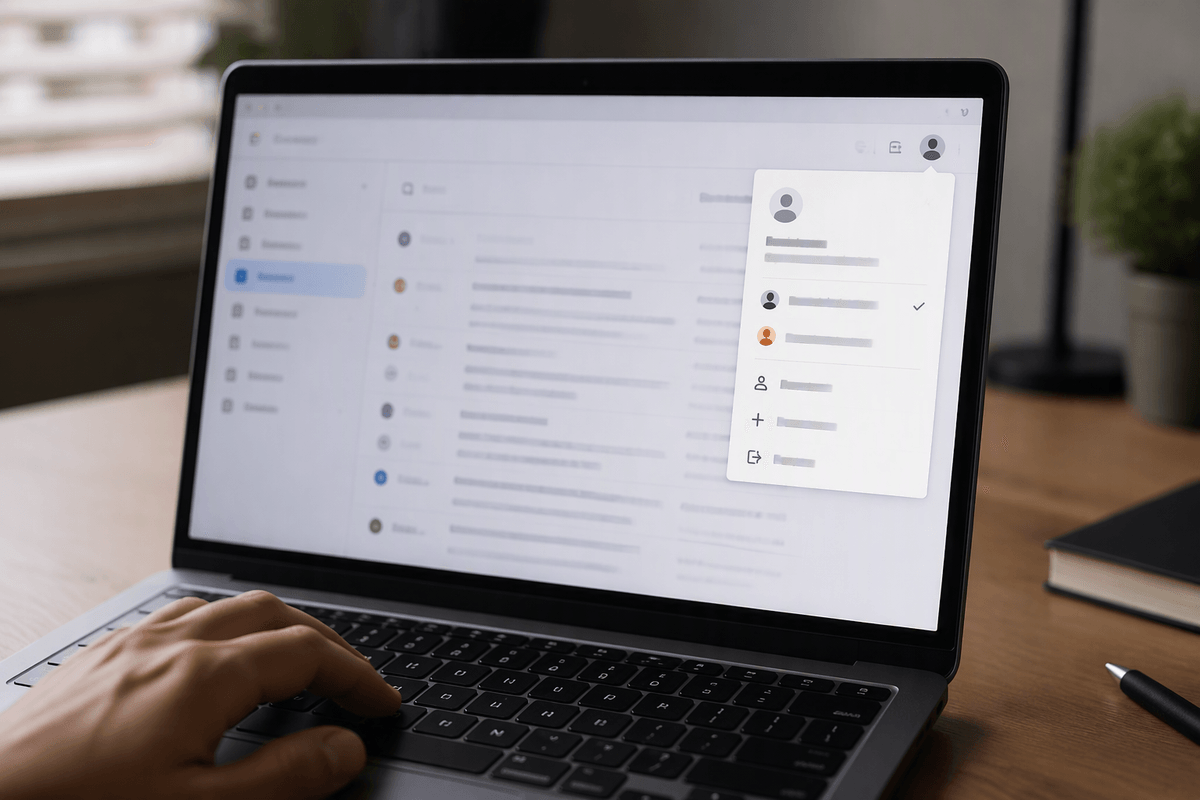
If you’re at a computer, the browser often tells you which email you’re actually using—even if you forgot what you signed in with. In Chrome, click your profile circle at the top-right (next to the three dots). The signed-in Google account email is usually shown there, and you can open Passwords and autofill (or the password manager) to see saved logins that may list full email addresses.
In Edge, click the profile icon to see the Microsoft account tied to the browser. In Firefox, open the menu and check whether you’re signed into a Firefox account, then look at saved logins. Also open a new tab and type “gmail.com” or “outlook.com”—if you land in an inbox without signing in, the address is visible in the account switcher or profile menu. If you use a shared computer, use a private/incognito window to avoid mixing in someone else’s account.
Locate your address inside Gmail, Outlook, Yahoo, and others
Inside most email services, the quickest confirmation is your profile menu—ignore the inbox name and look for the full address. In Gmail (web or app), tap/click your profile photo or initials; your signed-in address appears at the top, and the account switcher will show any other Gmail/Google accounts. Open Settings (gear icon) only if you need to confirm which address is attached to a specific inbox or forwarding setup.
In Outlook.com and the Outlook app, tap your profile icon or the account list (often in the top-left). Your Microsoft account email and any added mailboxes are listed there. Watch for “connected accounts” or shared mailboxes—your display name can be “Support Team,” but the actual sign-in might be a personal Microsoft address. In Yahoo Mail, open the menu or your profile icon and check Manage accounts; the full Yahoo address is shown even if the mailbox name is customized.
One practical snag: if you use “Sign in with Google/Apple,” the service may show a different contact email than the login email—write down both so you don’t chase the wrong one later.
If you have multiple emails, match the right one
You’ll often find more than one address on the same device: a Google/Gmail used for the Play Store, an iCloud email used for Apple ID, and an Outlook or work address used only inside a mail app. To match the right one, start with the task you’re trying to complete and work backward. If you’re signing into a specific service (a bank, streaming app, shopping site), open that service’s account page and look for “Email,” “Login,” or “Contact info.” Then compare it to what you see in your email app’s account list.
Use a simple test to confirm: search the inbox for a recent “verification code,” “sign-in alert,” or “welcome” message from that service. The correct email is the one that actually receives those notices. Watch for look-alikes—aliases, “Hide My Email” addresses, and old school/work accounts can forward mail, which makes the wrong address seem “active” even when it won’t work for sign-in.
When you can’t find it anywhere: recovery without guesswork
Sometimes the address isn’t visible because you’re not actually signed in anywhere, or the device is using a saved token that doesn’t display the full login. At that point, stop trying random emails. Go straight to the provider’s recovery flow and let it tell you what exists. On Gmail/Google, use “Forgot email” and identify the account with your phone number and recovery email (if you set one). On Microsoft (Outlook/Hotmail), use the account recovery page and try your phone number or alternate email; if you only remember a username, the form will still guide you. On Apple, check the Apple ID lookup and use the phone number or recovery email tied to the account.
One real limitation: if you never added a recovery phone/email (or you lost access to them), the provider may not confirm the address for privacy reasons. In that case, check old receipts, app-store purchase emails, or billing statements that show the exact login, then update recovery info immediately once you regain access.
Lock it in: save your email and prevent future confusion
Once you’ve found the exact address, save it in two places you’ll actually check: a secure password manager (or the phone’s built-in Passwords/Google Password Manager) and a simple note in your contacts under your own name. Add a short label like “Apple ID,” “Google/Play Store,” or “Work Outlook” so you don’t mix them up later. If you use “Hide My Email” or aliases, also save the real destination inbox they forward to.
Take five minutes to update recovery options while you’re already signed in: add a recovery phone number, a backup email you can access, and verify them. The practical cost is a little upfront time (and sometimes re-entering passwords on devices), but it prevents the much bigger headache of being locked out when a device changes, an app logs out, or support asks for the exact login.