Why iPhone speakers suddenly sound quiet or distorted
You notice it first on a call or a video: the sound is suddenly faint, scratchy, or like it’s coming through a pillow. On iPhone, that usually comes from one of four buckets—something physically blocking the grills (pocket lint, a tight case edge, dried splash residue), moisture that’s still in or near the speaker, a setting or audio route you didn’t mean to change (Silent mode, volume limits, Bluetooth/AirPlay), or a temporary software glitch after an app or iOS update.
The tricky part is that these can look identical in the moment. A partially blocked grill can mimic “blown” hardware, and audio accidentally routed to earbuds can make the phone seem dead. Cleaning and settings checks are safe and fast, but forcing air, poking the mesh, or charging while the phone is wet can make real damage worse.
Step 1: Confirm it’s the speaker, not the audio source
Before you touch any settings, make sure the problem isn’t coming from what you’re listening to. Try a different source: play a different song or video, switch to a different app (Safari or Apple Music), and test both a phone call and speakerphone if calls are the issue. If only one app sounds bad, close that app and test again—some apps can get “stuck” at a low output level.
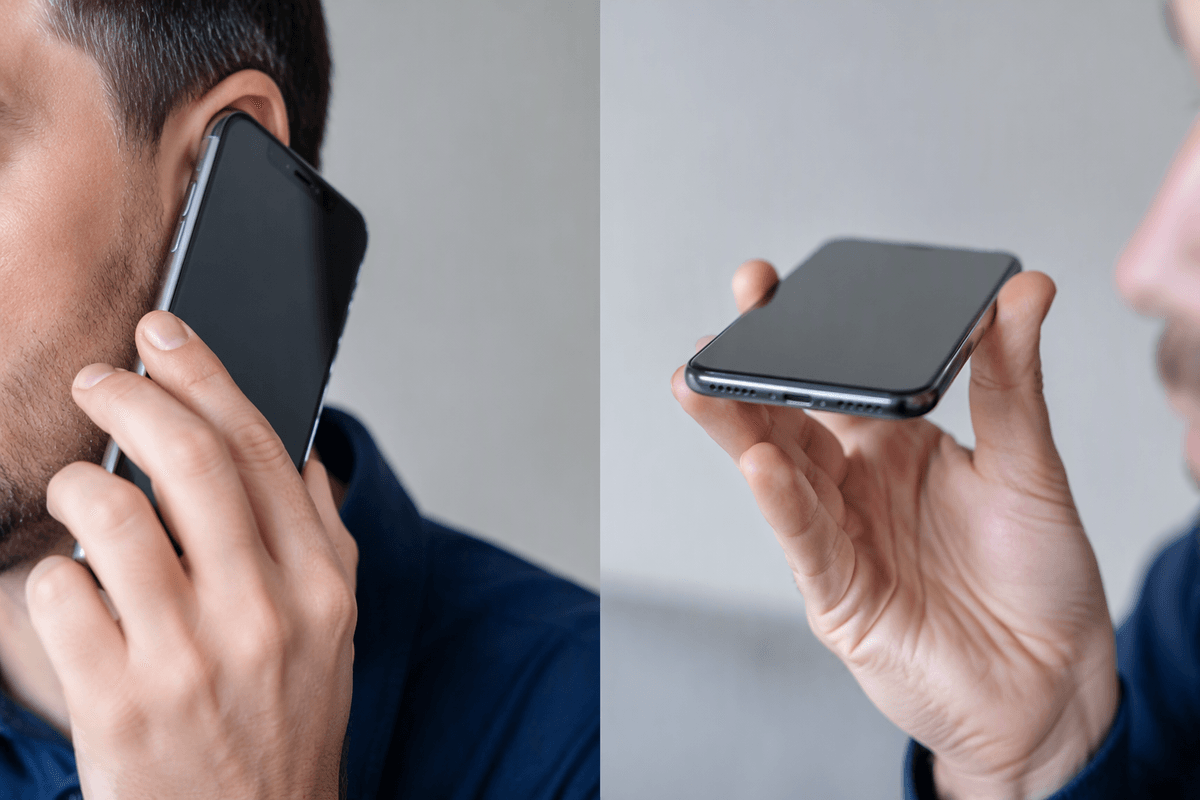
Then isolate which speaker is acting up. Hold the phone to your ear on a normal call (earpiece), then switch to Speaker (bottom speaker), and finally play a short video with the phone not against your face. If the earpiece is quiet but speakerphone is fine (or the reverse), you’ve narrowed the problem, which saves time later—especially if you end up needing a repair.
Step 2: Clean the speaker grills and remove anything blocking sound
If one speaker is clearly weaker, assume something is blocking it before you assume it’s “blown.” Take the iPhone out of any case and remove any screen protector edge that overlaps the earpiece slit. Under bright light, look for pocket lint packed into the bottom speaker holes or the earpiece mesh.
Clean gently: use a dry, soft toothbrush or an anti-static brush and sweep across the grills, not straight into them. A small piece of painter’s tape can lift lint—press lightly, then peel away. Avoid needles, toothpicks, compressed air, and liquids; they can puncture the mesh or push debris deeper. If the phone was splashed, don’t charge it yet—let it dry, then re-test sound after 30–60 minutes.
Step 3–4: Check volume, Silent mode, and key sound settings
It’s common to “lose” speaker volume because the phone is doing exactly what you told it to—just not what you meant. While playing a song or video, press the Volume Up button a few times (volume buttons won’t change media volume if nothing is playing). If you’re troubleshooting call volume, test during an active call and raise volume then, since call and media levels are separate.
Check the Ring/Silent switch on the left side: if you see orange, the ringer and many alerts are muted. Then go to Settings > Sounds & Haptics and make sure the Ringer and Alerts slider isn’t all the way down. If you often bump the buttons, toggle “Change with Buttons” so you can fix ringer volume quickly. Also review “Headphone Safety” (under Sounds & Haptics or Accessibility on some models), since a reduced loudness limit can make everything seem weak.
Step 5: Make sure audio isn’t routed to Bluetooth or AirPlay
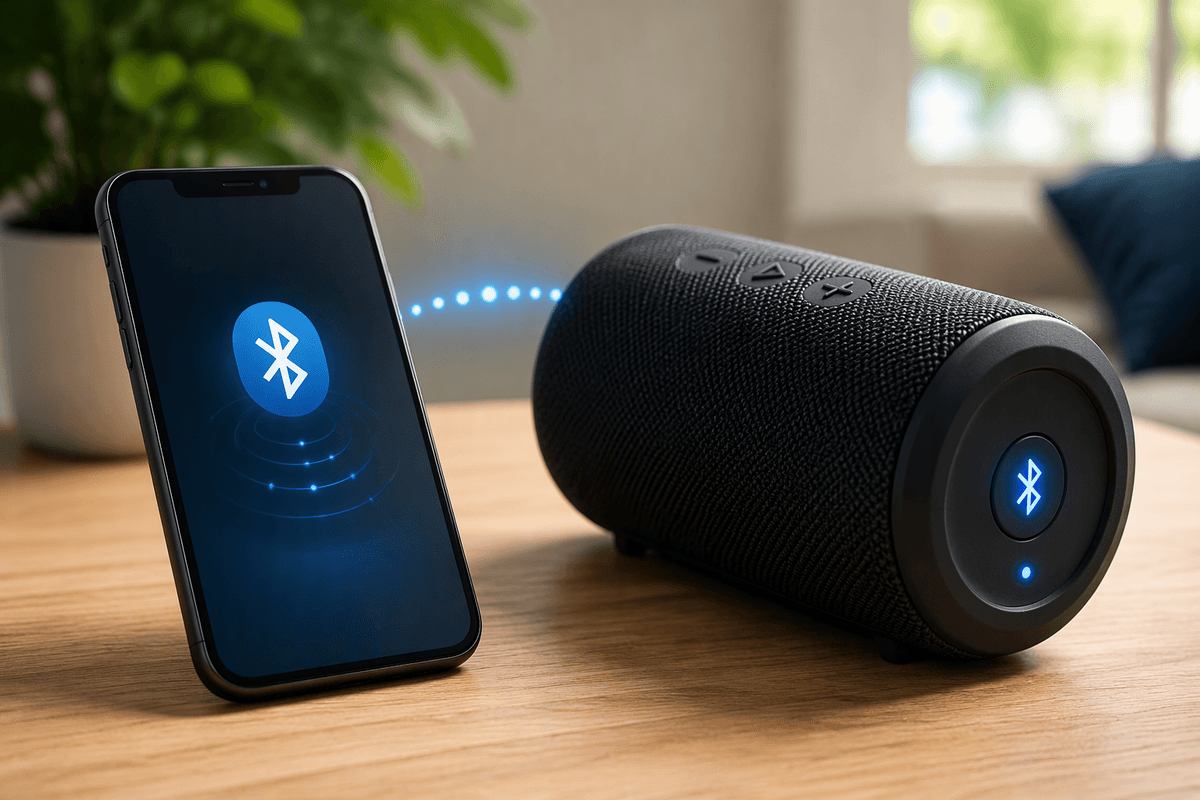
Sometimes the “quiet speaker” is just audio playing somewhere else. Open Control Center, press and hold the audio tile (the one with playback controls), then tap the AirPlay icon and make sure iPhone is selected as the output. If it shows AirPods, a car system, a Bluetooth speaker, or an Apple TV, your iPhone’s built-in speaker may sound silent even though audio is working.
Also check Settings > Bluetooth and look for devices that are Connected. If you’re not using them, toggle Bluetooth off temporarily or tap the “i” next to a device and choose Disconnect (or Forget This Device if it keeps stealing audio). This is especially common in cars and offices where devices reconnect automatically.
Step 6: Run quick speaker tests using built-in tools
A quick way to separate “something’s wrong with the speaker” from “something’s wrong with one app” is to use Apple’s built-in audio checks. Open Voice Memos, record 5–10 seconds of your voice, then play it back on the iPhone speaker and again with Speaker turned on during a call. If playback is clean in Voice Memos but distorted in one app, that points to an app issue, not hardware.
Also try Settings > Sounds & Haptics and drag the Ringer and Alerts slider while “Play Haptics in Ring/Silent” is on—you should hear the sample tone clearly. If sound is crackly at any volume, or drops out when you lightly press near the bottom speaker/earpiece area, stop testing and move on to software steps or repair, since repeated max-volume tests can worsen a damaged speaker.
Step 7: Restart, update iOS, and reset settings without data loss
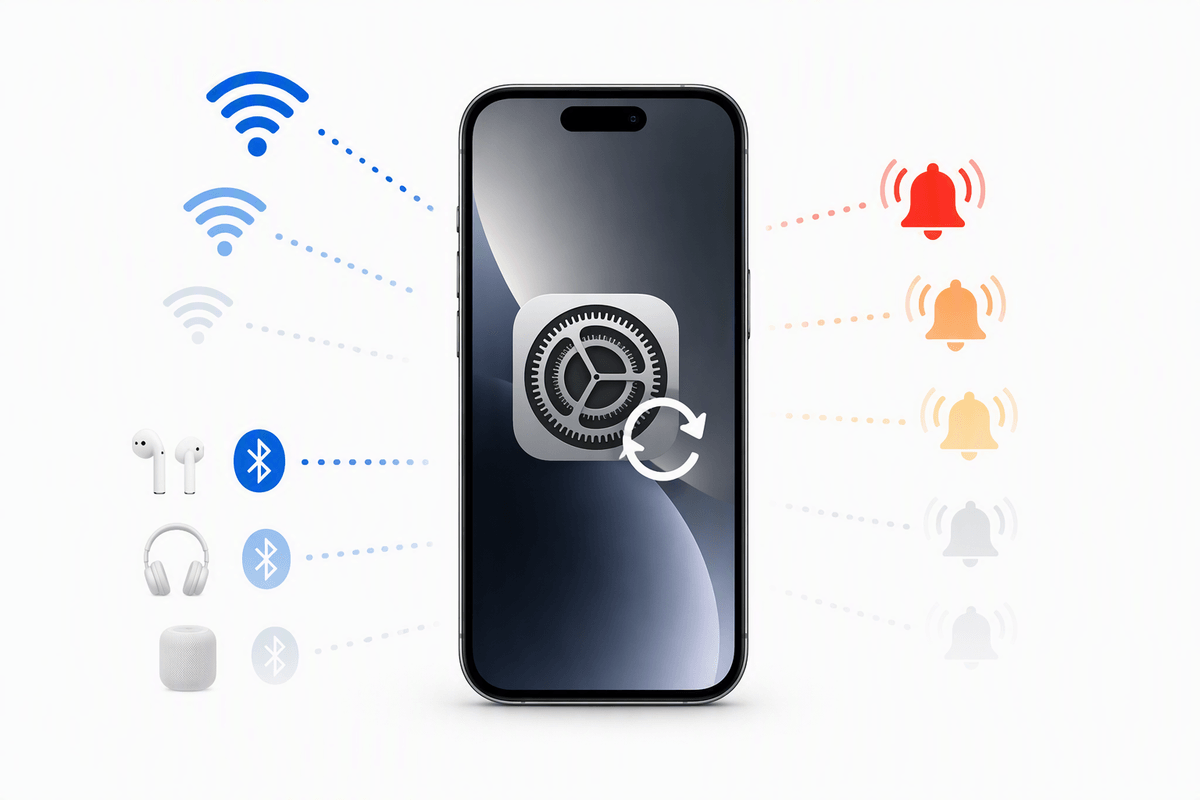
If sound is still inconsistent, clear out the “stuck” state that can happen after an app crash or iOS change. Start with a normal restart (power off, wait 15 seconds, power on), then re-test with a ringtone sample and a short video. If that helps briefly but the issue returns, install the latest iOS update in Settings > General > Software Update (plug in and use Wi‑Fi; updates can take 20–60 minutes and need several GB free).
When updates don’t help, reset settings without erasing your photos or apps: go to Settings > General > Transfer or Reset iPhone > Reset > Reset All Settings. This often fixes corrupted audio routing, volume limits, and weird accessibility toggles, but it will wipe saved Wi‑Fi networks, Bluetooth pairings, and any custom sound/notification preferences—plan a few minutes afterward to reconnect and re-pair devices.
Step 8: Spot hardware damage and choose the right repair path
If sound is still muffled or cuts out after cleaning, routing checks, an iOS update, and Reset All Settings, start treating it like hardware. Clues include: distortion at any volume, no sound from one speaker in every app, audio that changes when you gently press the chassis, visible grill dents, or recent drops/splash exposure. Stop using compressed air and don’t keep maxing volume—it can finish off a failing driver.
Back up the iPhone, then book Apple Support or an authorized repair. Ask for a speaker/receiver diagnostic and a quote; repairs can involve the speaker module, receiver, or the dock/charging assembly. If there’s liquid exposure, mention it—corrosion can spread and delay makes it harder to fix.